Provide credentials to applications with secret volumes
Applications often need a credential, such as an API token, a password, or a
certificate. This page shows how to deliver a credential to a container as a
file, without putting it in the container image or in compose.yaml.
You connect a secret to a container with four settings:
- A secret stores the value in your project.
- A Volume Secrets entry on the pod selects the secret and names a file for each key.
- A Host Volume Mounts entry with the same volume name sets the directory on the device that receives the files.
- A bind mount in
compose.yamlmounts that directory into the container.
Configuration maps use the same four settings. If host volumes and bind mounts are new to you, read Configure applications via configuration maps first.
The device delivers a secret as a file. If your program expects an environment
variable, load the file with env_file as shown in
Pass a credential as an environment variable.
What you need
- access to the SPEKTRA Edge dashboard
- a project with an online device
- a role that can create secrets and deploy pods, such as Owner, Admin operator, Device operator, or Application operator
The platform stores secrets encrypted, but it does not limit a secret to the devices that use it. Any device in the project can read any secret in the project. Keep a credential that a device must not see in a different project.
Create the secret
The device base64-decodes every secret value before it writes the file. Enter each value in base64. Convert to Base64 encodes the text in the value box for you. The file on the device then holds your original text. If the value is already base64, Convert to Base64 leaves it unchanged.
- In the left navigation menu, click Applications, then click Secrets.
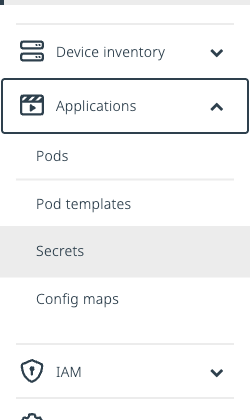
Select Secrets under Applications in the left navigation menu.
- Click Add Secret.
- In Secret display name, enter
Demo API token. The page shows the generated secret ID,demo-api-token. - If the page shows Region, select the region of your device. The platform does not copy secrets between regions, and a device reads secrets only from its own region.
- In Secret data key name, enter
token. You select this key name later when you deploy the pod. - In Secret data key value, enter
demo-token-1234. The box does not hide what you type. - Click Convert to Base64. The value changes to
ZGVtby10b2tlbi0xMjM0.
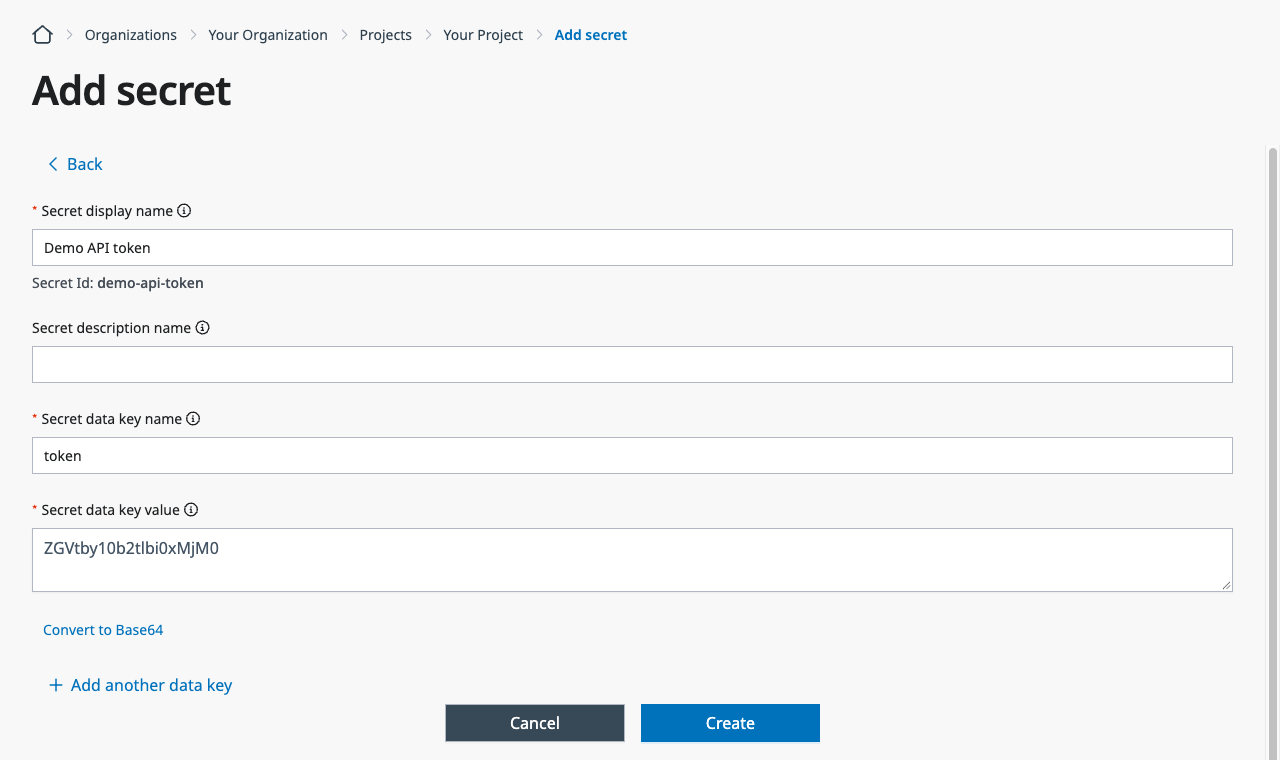
Fill in the Add Secret page and click Convert to Base64.
- To add another key, such as the private key for a certificate, click Add another data key.
- Click Create. The Dashboard shows “Successfully created secret.”
Write the compose file
The example container only sleeps. You look at its files from a terminal in Verify the application.
services:
  app:
    image: busybox:stable
    command: ["sleep", "3600"]
    volumes:
    - /isodevice/data/credentials/api:/etc/credentials:ro
The volumes entry bind-mounts the host directory
/isodevice/data/credentials/api into the container at /etc/credentials. The
device writes the secret files to the host directory, and the container reads
them at /etc/credentials. The :ro suffix makes the mount read-only inside
the container. The device writes each file as root with mode 0644, so any
user in the container can read it.
Files under /isodevice/data persist across reboots. They are encrypted on
disk only when disk encryption is enabled on the device.
Deleting the pod deletes the host directory that receives the secret files,
with everything in it. Give each application its own directory, such as
/isodevice/data/credentials/api. Never use /isodevice/data itself or a
directory that holds other data.
Deploy the application
- On the Project overview page, click Deploy pod.
- Choose the Pod card. It deploys to a single device.
- In Pod display name, enter
Credentials demo. - In Docker Compose, paste the content of
compose.yaml. - In Target device to deploy, select your device.
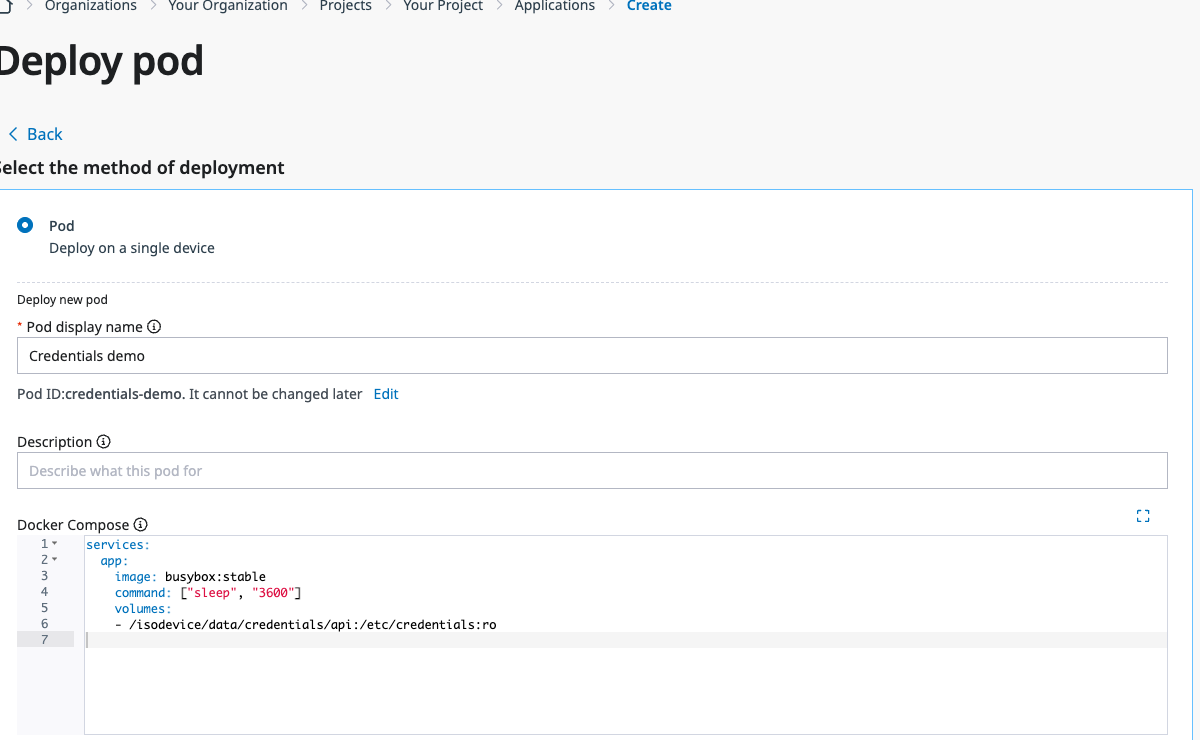
Paste the compose file and select the target device on the Deploy pod page.
In the Volume Secrets card, click Add volume secret. Fill in the new entry as follows:
- In Volume Name, enter
api-credentials. - In Select Secret, select
projects/<your-project>/regions/<your-region>/secrets/demo-api-token. The page accepts an empty selection, but the application then fails on the device. - Leave Enter Mode bits for Secret and Specify whether the Secret or its keys must be defined at their defaults, because the device ignores both.
- Under Select Secret Items, in Select Key, select
token. - In Enter Path, enter
token. The device writes the value to a file with this name in the host directory. Use a plain file name, not a path such asa/b.
Fill in both Select Key and Enter Path. The page accepts an empty row, but the application then fails on the device.
- In Volume Name, enter
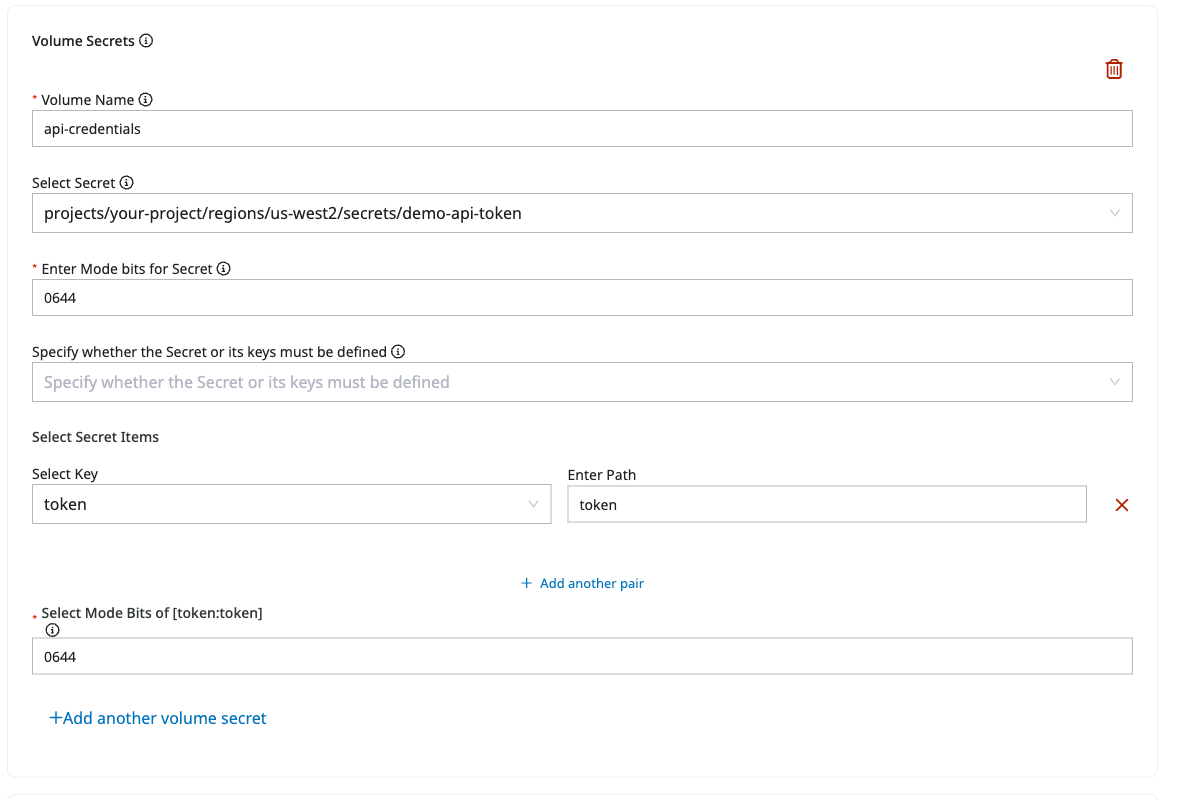
Select the secret, its key, and the file name in the Volume Secrets card.
- In the Host Volume Mounts card, click Add Host volume. Fill in the
new entry as follows:
- In Volume Name, enter
api-credentials. This name must match the Volume Name in Volume Secrets. The page does not check it. - In Volume Mount Path, enter
/isodevice/data/credentials/api. This is the host directory that receives the files. It must match the left side of the bind mount incompose.yaml. The on-screen hint describes a path within the container, but here you enter the host directory. - Leave Volume Sub Path and Volume Read Only at their defaults. The
device ignores both, so
:roincompose.yamlsets read-only instead.
- In Volume Name, enter
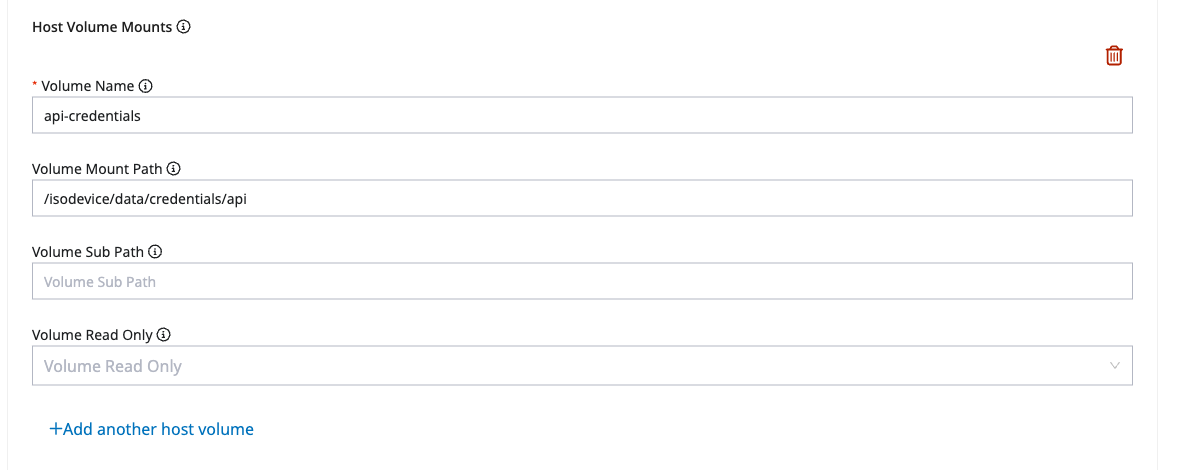
Enter the same volume name and the host directory in the Host Volume Mounts card.
- Click Deploy. The Dashboard shows “Successfully deployed pod” and opens the application overview page.
Verify the application
On the application overview page, wait for the status to change from Pending to Running.
Click the device name next to Running on to open the Device overview page.
In the Terminal window, click Connect. To use your own terminal instead, see Access devices.
Find the container of your application.
docker ps --format '{{.ID}} {{.Names}}'The container name is the pod name followed by
_app_1. It spells each hyphen as-2dand each slash as-2f. Copy the ID of the row that ends withcredentials-2ddemo_app_1.List the credentials directory in the container.
docker exec <container-id> ls -l /etc/credentialstotal 4 -rw-r--r-- 1 root root 15 Sep 30 21:21 tokenShow the credential.
docker exec <container-id> cat /etc/credentials/tokendemo-token-1234
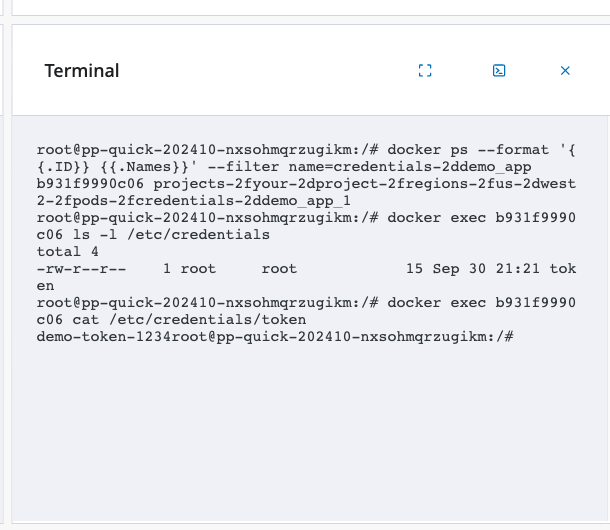
Run the docker commands in the Terminal window of the Device overview page.
The size 15 is the length of demo-token-1234, not of the 20-character base64
text, so the device decoded the value before it wrote the file. This sample
prints the credential to show that it arrived. Do not print credentials in a
real application.
Pass a credential as an environment variable
Some programs read a credential from an environment variable. Docker Compose
can load variables from a file with env_file, so a secret volume works for
this case too. You do not need a bind mount.
- Create a secret with the data key name
.env. In the value, write oneNAME=valueline for each variable, for exampleAPI_TOKEN=demo-token-1234, and click Convert to Base64.
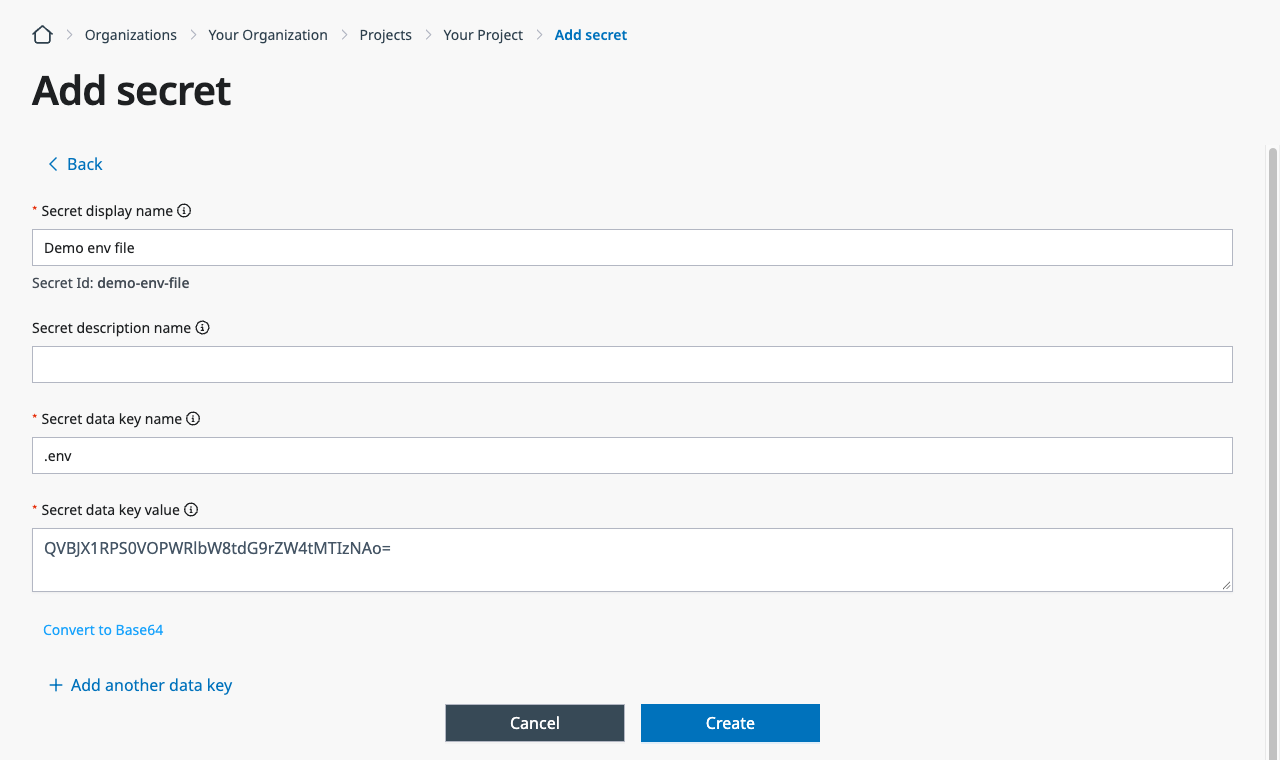
Enter .env as the data key name, and convert the NAME=value lines to base64.
- In the Volume Secrets card, select the
.envkey, and enter.envin Enter Path. - In the Host Volume Mounts card, enter the same volume name and a
dedicated host directory, such as
/isodevice/data/credentials/env. - In Docker Compose, replace the
volumesentry with anenv_fileentry that names the file on the host.
services:
  app:
    image: busybox:stable
    command: ["sh", "-c", "while true; do printenv API_TOKEN; sleep 30; done"]
    env_file:
    - /isodevice/data/credentials/env/.env
The application logs show demo-token-1234 every 30 seconds. This
sample prints the credential to show that it arrived. A real application must
not write its credentials to a log.
Docker Compose expands $name in an env file, so write $$ for a literal
dollar sign. The line SAMPLE=pa$$word gives SAMPLE the value pa$word.
An environment variable is less private than a file. Anyone with root access on
the device can read it with docker inspect, and every process in the
container inherits it. Use a file, as in the first example, when the program can
read one. To deliver a new value, follow Update a secret.
Update a secret
Editing a secret does not change the files of a running application. The device reads a secret only when it creates the application or when you change the application’s settings. Restart and Save without a change do not read the secret again.
To deliver a new value:
- In the Secrets list, click the name of the secret.
- Click the vertical three-dots next to the secret name, and select Edit.
- Click Show Secret to see the stored value. It is the base64 text.
- Replace the value with the new text, and click Convert to Base64.
- Click Update. The Dashboard shows “Successfully updated secret.”
- On the application overview page, click the vertical three-dots next to the application name, and select Edit Details.
- In Docker Compose, change any setting, and click Save. For example,
add an environment variable that holds a version number, such as
CREDENTIALS_VERSION=2, and raise the number each time you rotate the secret.
The device writes every secret file again and recreates the container.
The device does not remove files for keys that you delete from the secret or from Select Secret Items. To remove them, delete the application. Deleting the application also removes the host directory.
Troubleshoot
If the device cannot prepare the volumes, the application status becomes
Initialization failed. The Error row and the red banner on the
application overview page show the device’s message. Some messages say
ConfigMap even when the volume is a secret.
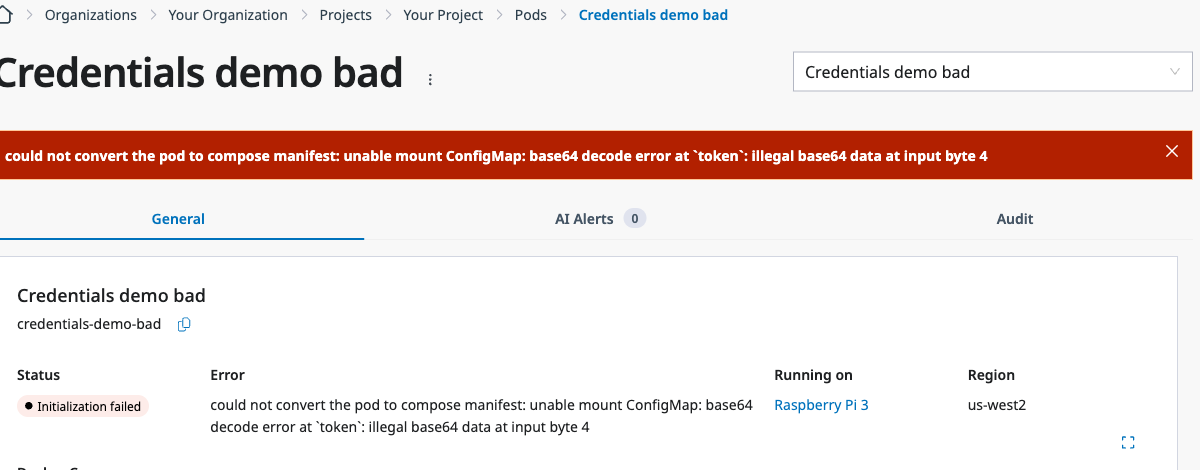
The application is in Initialization failed because the secret value is not valid base64.
| Error message contains | Cause | Fix |
|---|---|---|
base64 decode error at | The secret value is not valid base64. | Edit the secret, enter the value again, and click Convert to Base64. |
key `<key>` not defined | Select Key names a key that the secret does not have, or the row under Select Secret Items is empty. | Select a key in Select Key, and enter a path in Enter Path. |
unable to get Secret | The secret does not exist, is in another region than the device, or the device cannot read it. | Create the secret in the region of the device, and select it in Select Secret. |
could not write to | Enter Path contains a subdirectory, such as a/b. | Enter a plain file name. |
volume `<name>` referenced by container | The Volume Name in Host Volume Mounts matches no Volume Name in Volume Secrets. | Enter the same name in both cards. |
Two problems show no error message.
- If the container runs but
lsshowstotal 0, the bind mount incompose.yamluses a different host directory than Volume Mount Path. The container sees an empty directory. Use the same host directory in both places. - If Select Key has no options, your role cannot read secret values. Ask for a role listed in What you need.
The device does not retry an application in Initialization failed on its own. After you fix the secret or a setting, click Edit Details, change a setting in Docker Compose, and click Save.
Next steps
To pull the application image from a registry that needs credentials, use an image secret instead. See Deploy with private container registries.
To run the application on many devices at once, continue with multiple devices. To learn how the platform stores and scopes secrets, read Secrets.