Deploy an application
Once you have developed and published your application image to a container registry, it is time to deploy it to your device.
SPEKTRA Edge provides the Docker compose environment on your device so that you can declare your application in the standard Docker compose file format to run it on your device.
Let’s create a compose.yaml file for the application we developed in the previous section and deploy it on your device through the SPEKTRA Edge dashboard.
Please take a look at the private registry section in case you use the private container registries, such as Amazon Elastic Container Registry, Azure Container Registry, or Google Artifact Registry.
What you need
To deploy your application on your device, you need:
- the Docker Compose environment on your local machine, for local verification
- access to the SPEKTRA Edge dashboard
- a device provisioned through the SPEKTRA Edge dashboard
And also, the cuttle CLI command is necessary to complete this tutorial, which is used to access the application from the local machine for the verification purpose. However, it is not required for deploying applications on SPEKTRA Edge.
Please go through the getting started guide if you haven’t done that.
Local verification
Let’s create and verify compose.yaml file on your local machine.
compose.yaml
Here is the compose.yaml file to deploy the application we developed in the previous section.
services:
  app:
    image: spektraedge/awesome:latest
    ports:
    - 8000:8000
Let’s go over the file line-by-line.
services
This is the top level element of the compose file to abstract the definition of a computing resource within an application which can be scaled or replaced independently from other components.
You can take a look at the official documentation for more detail.
app
This is the name of the service, which represents the service definition. We name it app here but it’s free to use different names.
image
imagespecifies the image to start the container from.imagemust follow the Open Container Specification, as[<registry>/][<project>/]<image>[:<tag>|@<digest>].
ports
The
portsis used to define the port mappings between the host machine and the containers. This is crucial for allowing external access to service running inside containers.This example exposes the container application’s port 8000 to be accessible through the local machine’s port 8000.
Please take a look at the official document for the ports attribute definition.
SPEKTRA Edge compose conventions
Your compose file runs on the device through a managed pod driver, which behaves
slightly differently from a plain docker compose up in your project folder.
Keep these two conventions in mind when authoring compose.yaml.
Use absolute host paths for bind mounts. The driver stores each pod’s compose file in its own state directory on the device and runs
docker composefrom there, so a relative bind-mount source is resolved against that internal directory — not a project folder you control. Docker then auto-creates the missing path there and the agent logs a repeatingfailed to read compose file ...: is a directoryerror. Use an absolute host path on a persistent filesystem instead. On SPEKTRA Edge OS that is/isodevice/data, which survives power cycles and OS upgrades (on a.debinstall, use an absolute path on your host’s own persistent storage). Better still, mount configuration through a configuration map and host volume:services: app: volumes: # Avoid — relative source resolves inside the driver's state directory: # - ./config:/etc/app/config # # Prefer — an absolute path on the persistent data partition: - /isodevice/data/myapp/config:/etc/app/configDo not set
container_name. The driver tracks and reconciles containers using its own naming convention (derived from the pod name). A customcontainer_nameno longer matches that convention, so the agent treats the container as potentially unmanaged and falls back to re-scanning manifests to re-associate it. Omitcontainer_nameand let the driver assign names.
docker compose up
With the compose.yaml file ready on your local machine, run
docker compose up command in the directory where the file
locates:
$ tree .
.
└── compose.yaml

1 directory, 1 file
$ docker compose up
[+] Running 2/0
 ✔ Network sample_default  Created                                        0.0s
 ✔ Container sample-app-1  Created                                        0.0s
Attaching to app-1
app-1  |  * Serving Flask app 'hello'
app-1  |  * Debug mode: off
app-1  | WARNING: This is a development server. Do not use it in a production deployment. Use a production WSGI server instead.
app-1  |  * Running on all addresses (0.0.0.0)
app-1  |  * Running on http://127.0.0.1:8000
app-1  |  * Running on http://172.20.0.2:8000
app-1  | Press CTRL+C to quit
Here you can see the application running and listening on the port 8000 on your local machine.
Point your browser to http://localhost:8000 to verify your application.
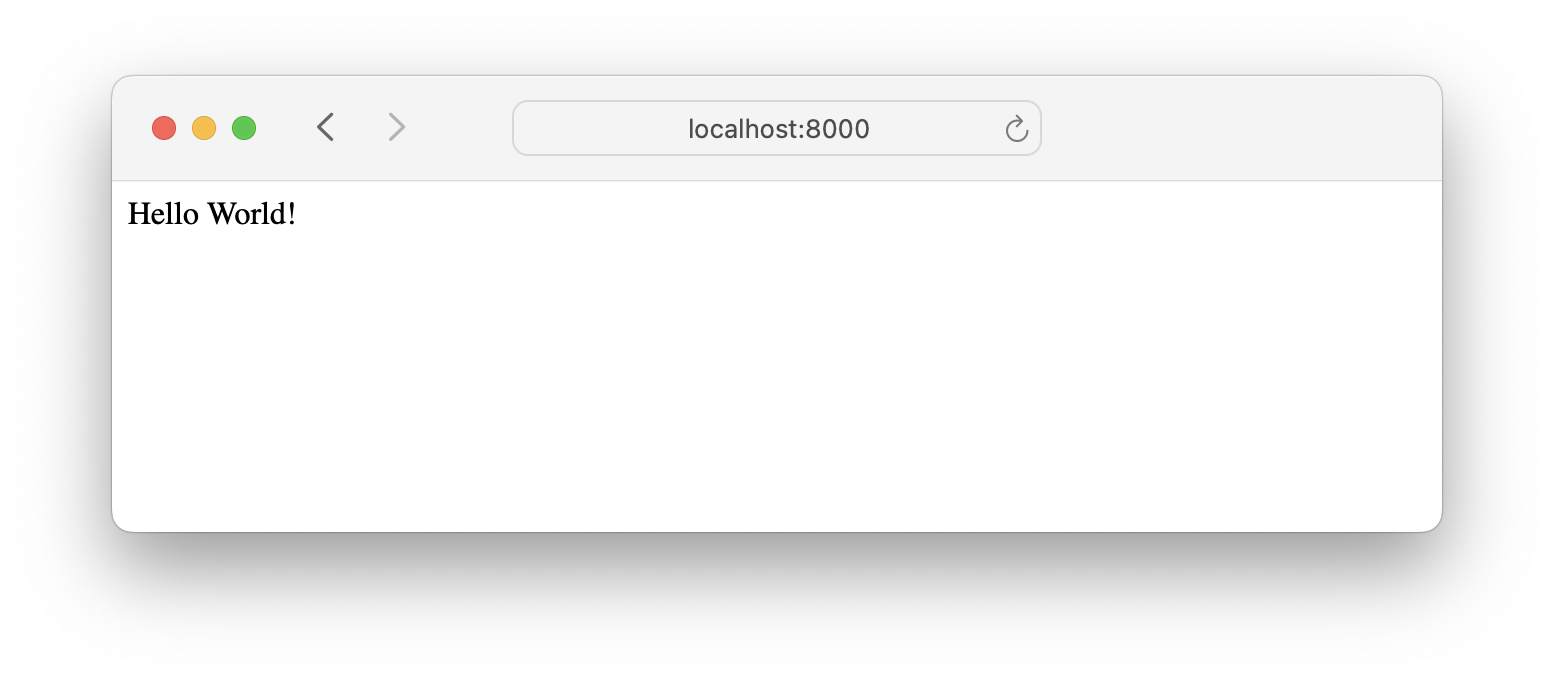
Successfully accessing the application locally.
Deploy to your device
With the compose.yaml ready, let’s deploy your application on your device through the SPEKTRA Edge dashboard.
Go to the project overview page and click Deploy pod.
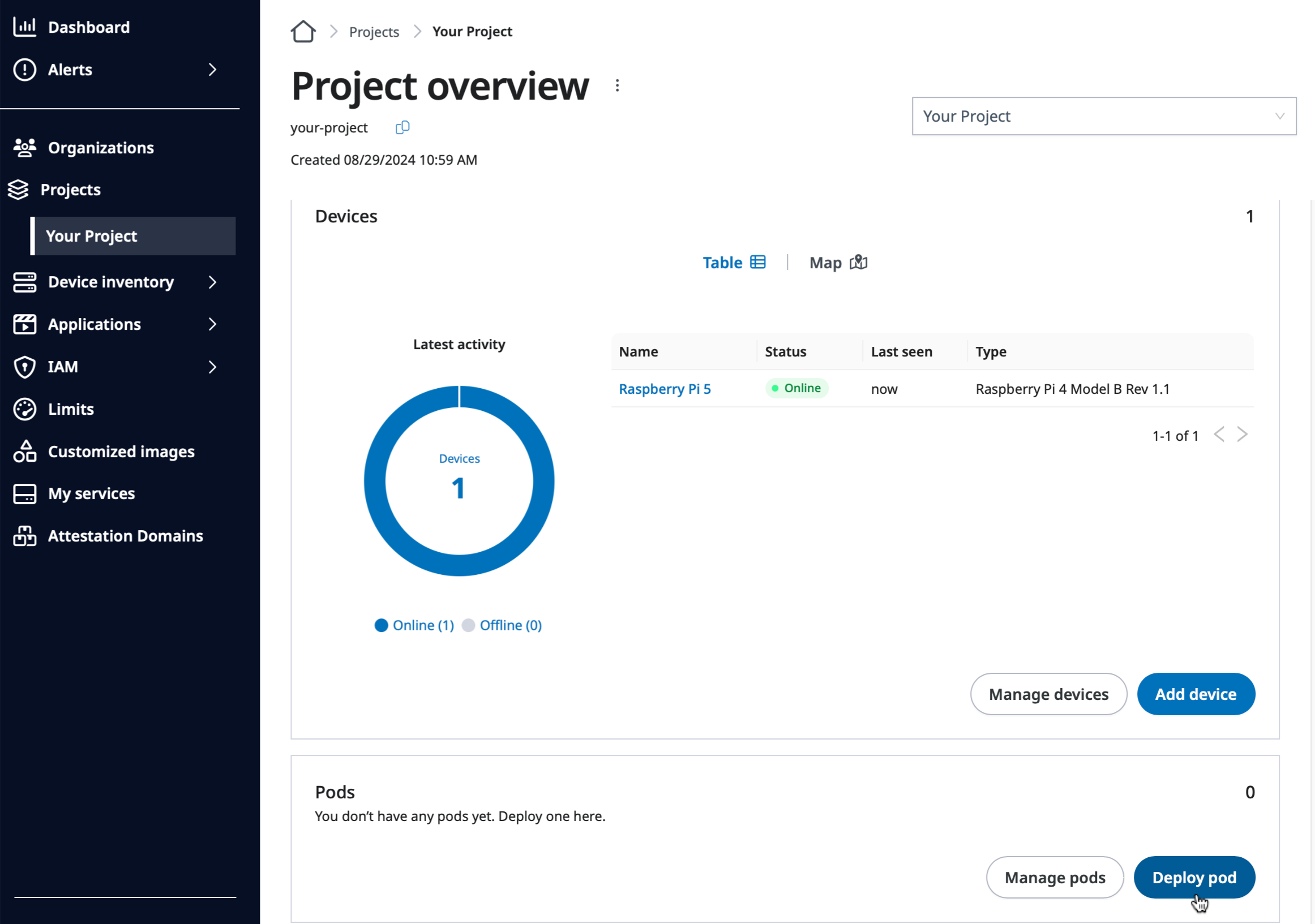
Deploy pod button on the Project overview page.
Select Deploy on a single device option and provide the following information.
- Application name
- Application description
- Docker compose, compose.yaml file for your reference
- Target device to deploy
Then, click Deploy to deploy your application.
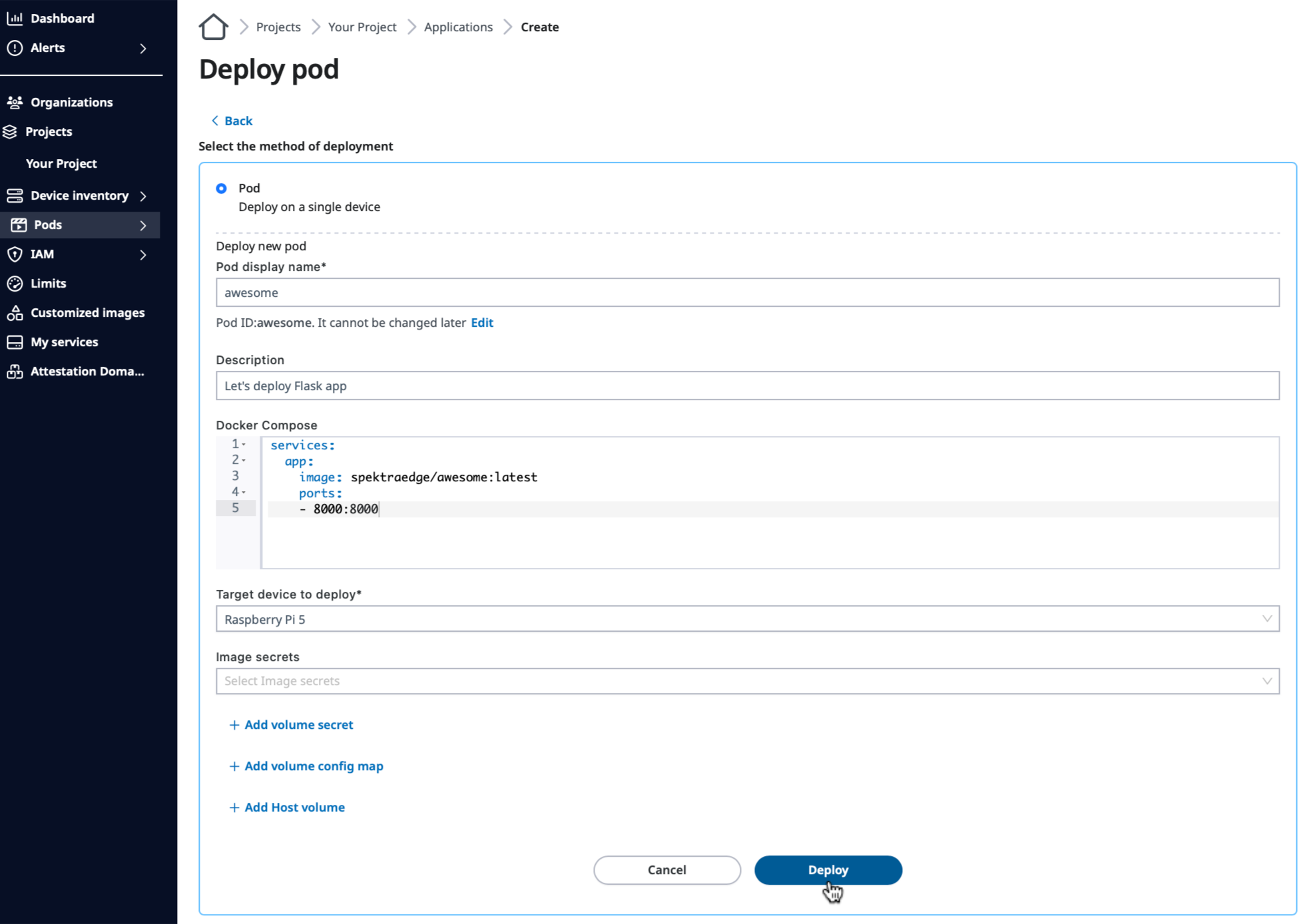
Deploy button on the Deploy pod page.
Congratulations!
You now deployed your application on your device through the SPEKTRA Edge dashboard.
Verify your application
You can verify your application’s health from the SPEKTRA Edge dashboard.
The application page provides the following statistics:
- Application’s overall status
- Each container’s status
- Each container’s CPU utilization
- Each container’s memory utilization
- Application’s logs
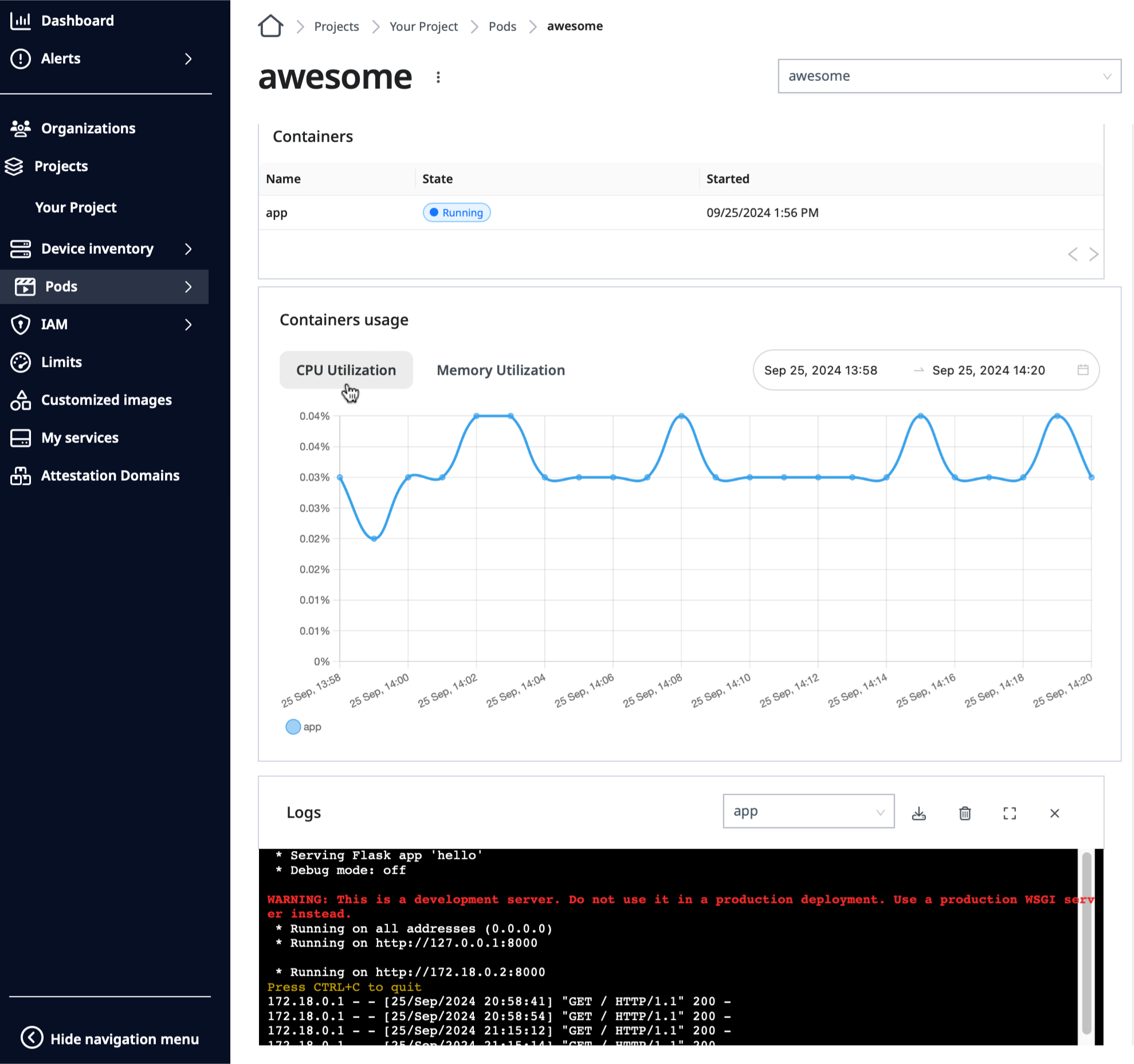
CPU Utilization button on the Application page.
You can also restart the application by clicking the Restart option of the drop down menu right next to the application’s name:
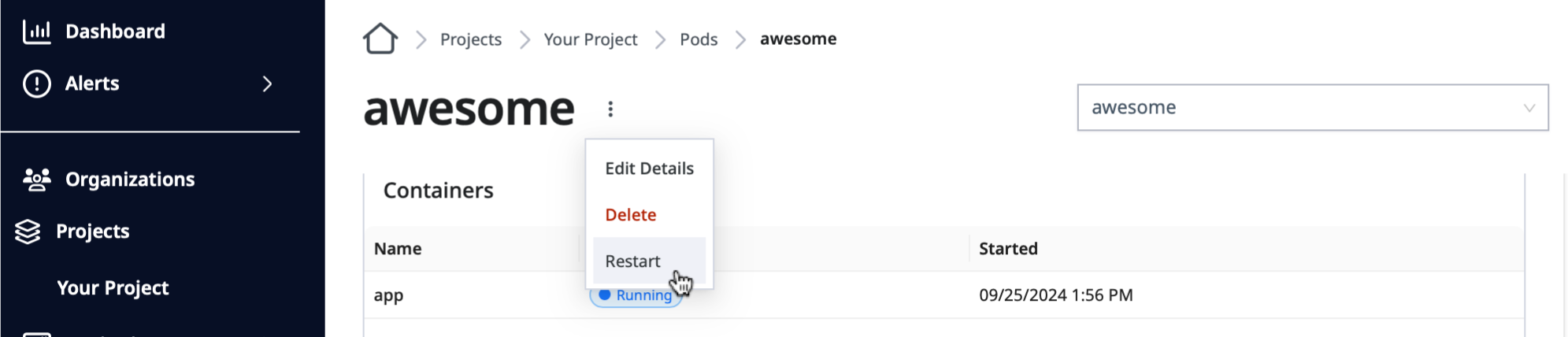
Restart option on the Application pull-down menu.
The same thing from your terminal:
cuttle applications restart \
  projects/your-project/regions/us-west2/pods/nginx
Naming a service after the pod restarts only that container, and
cuttle applications pods start|stop|restart gives you the other two actions.
Or you can edit the applications, e.g. compose.yaml, by clicking the Edit option of the drop down menu right next to the application’s name:
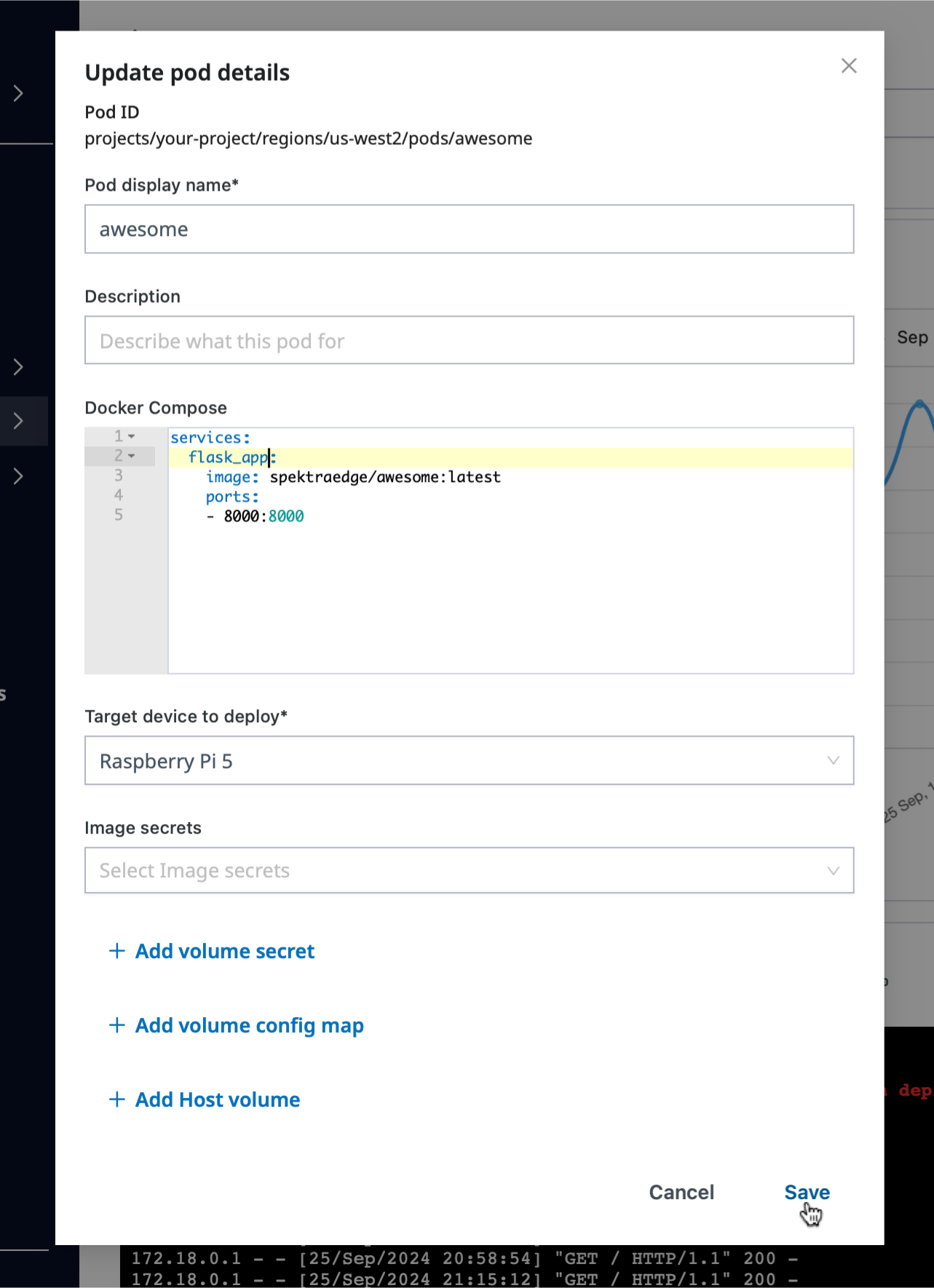
Editting Docker compose file in the Update pod details pane.
Now, let’s access your application from your local machine by utilizing the SPEKTRA Edge port-forwarding feature. Simply copy the cuttle command provided by the dashboard located under the Docker compose section:
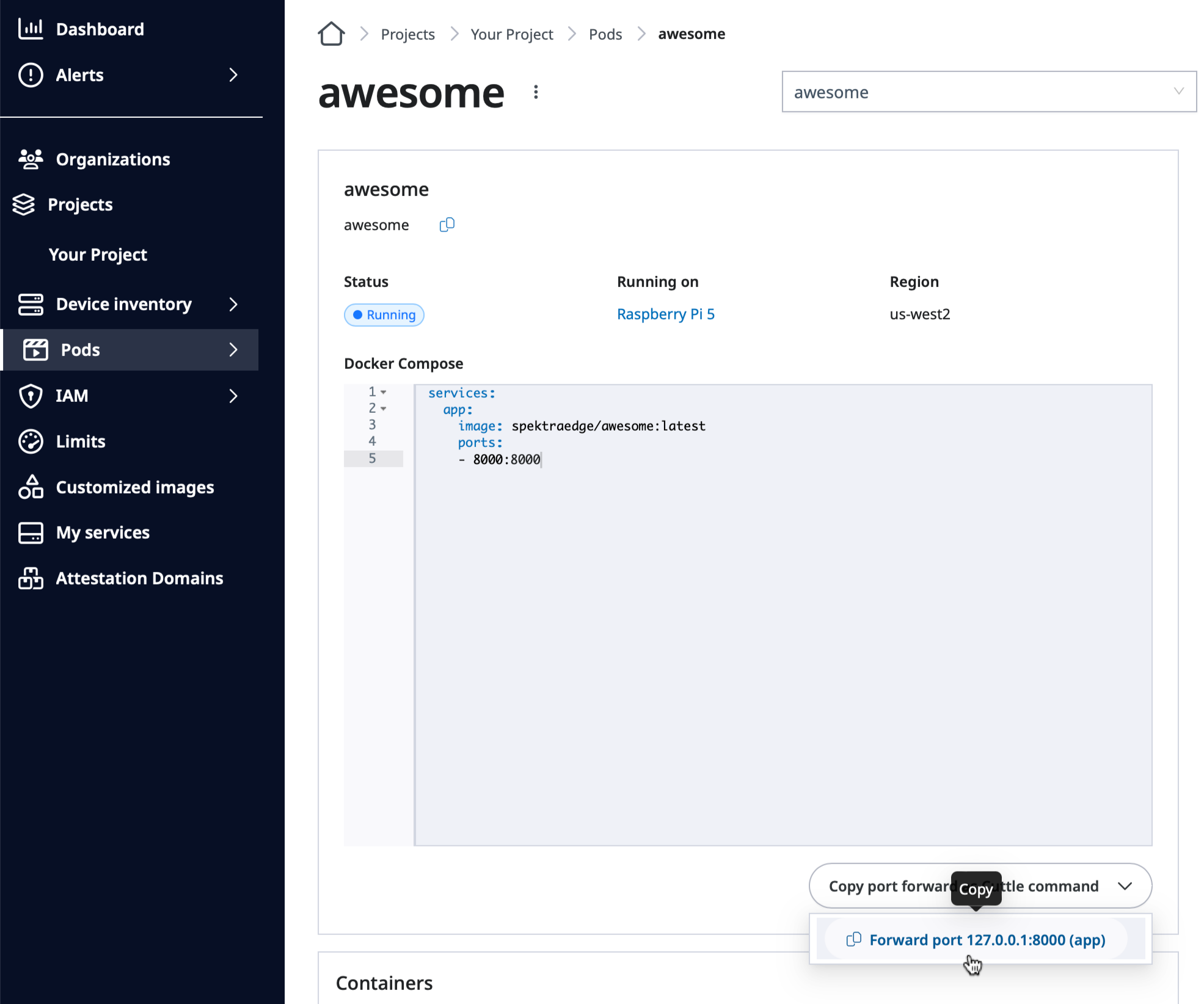
Copy Port forward command option on the Application page.
Open the terminal on your local machine. Paste the command you just copied onto your terminal and run it to enable the port-forwarding to access your application from the local machine.
Here is the example port-forward command for your reference. It enables your application, which is listening on device’s port 8000, reachable through your local machine’s port 8000.
cuttle devices forward-port \
  projects/your-project/regions/us-west2/devices/raspberry-pi-5 \
  8000 tcp://127.0.0.1:8000
With the above port-forwarding command running, point your browser to http://localhost:8000 to access your application from your local machine.
You will get the same result you got during the local verification.
Successfully accessing the application running on your device.
Next steps
With the application running on your device, learn how to supply it with configuration, so the same image can behave differently in different places.