Proxy configuration
If your devices reach the internet through a forward proxy, configure the proxy so that both the device’s connection to the SPEKTRA Edge platform and your workloads’ traffic are routed correctly.
What you can set
Proxy configuration consists of the standard proxy settings:
| Setting | Meaning |
|---|---|
http_proxy | Proxy URL for plain HTTP traffic. |
https_proxy | Proxy URL for HTTPS traffic. |
no_proxy | Hosts and networks that should bypass the proxy (comma-separated). |
In addition, you can specify which network interfaces the device should use to reach the platform through the proxy, so control-plane traffic uses the intended path.
Where to set it
You can configure the proxy:
- at image creation, so devices use the proxy from first boot, or
- from the dashboard for a device that is already online.
Which traffic uses the proxy
“The device uses a proxy” is three separate behaviors, and they do not all work the same way. The distinction matters most for the third row.
| Traffic | Uses the proxy? | How |
|---|---|---|
| The device’s connection to the platform | Yes | The agent opens an HTTP CONNECT tunnel through the proxy, then speaks TLS to the platform through it. |
| Container image pulls | Yes | The proxy settings are written into the container runtime’s own configuration, so pulls made on the device’s behalf follow them. |
| Traffic your workload makes once running | No | A running container does not inherit the device’s proxy settings. |
Setting a proxy on the device does not route your application’s outbound
traffic through it. The device injects only its own LQD_* variables into a
workload’s environment — not HTTP_PROXY, HTTPS_PROXY, or NO_PROXY.
If your application must egress through the proxy, set those variables
yourself in the container’s environment in your compose definition, or
configure the proxy inside the application. This is the application owner’s
responsibility — see Shared responsibility.
Configure the proxy from the dashboard
To go through this section, you need:
- access to the SPEKTRA Edge dashboard
- an active project
- a device provisioned under the project
- the name and the port number of the proxy server
Go to the Device overview page of the target device under your project by clicking the name of the device on the Project overview page.
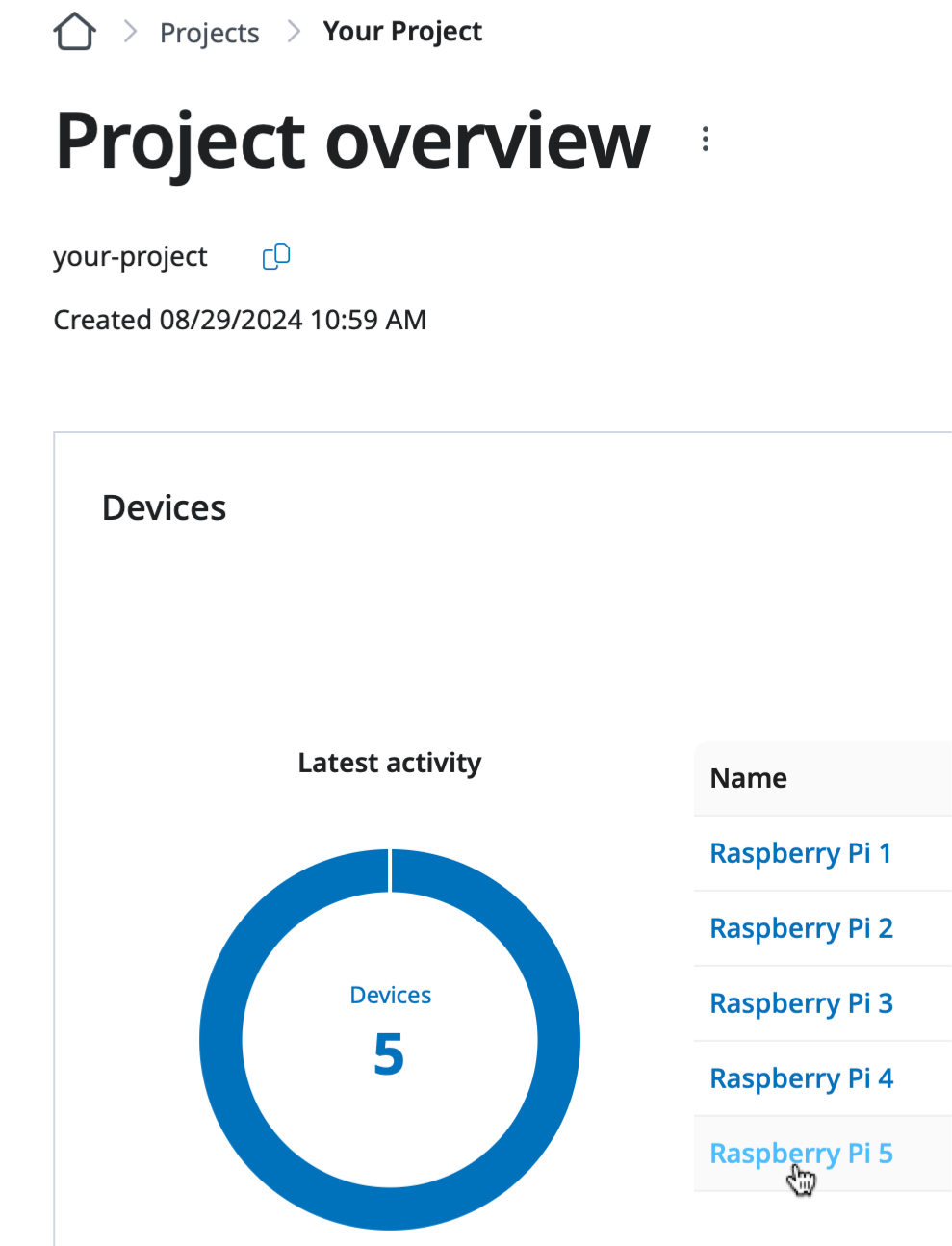
Clicking the device name on the Project overview page.
Open the Update device details page by clicking the Edit detail option of the device menu option.
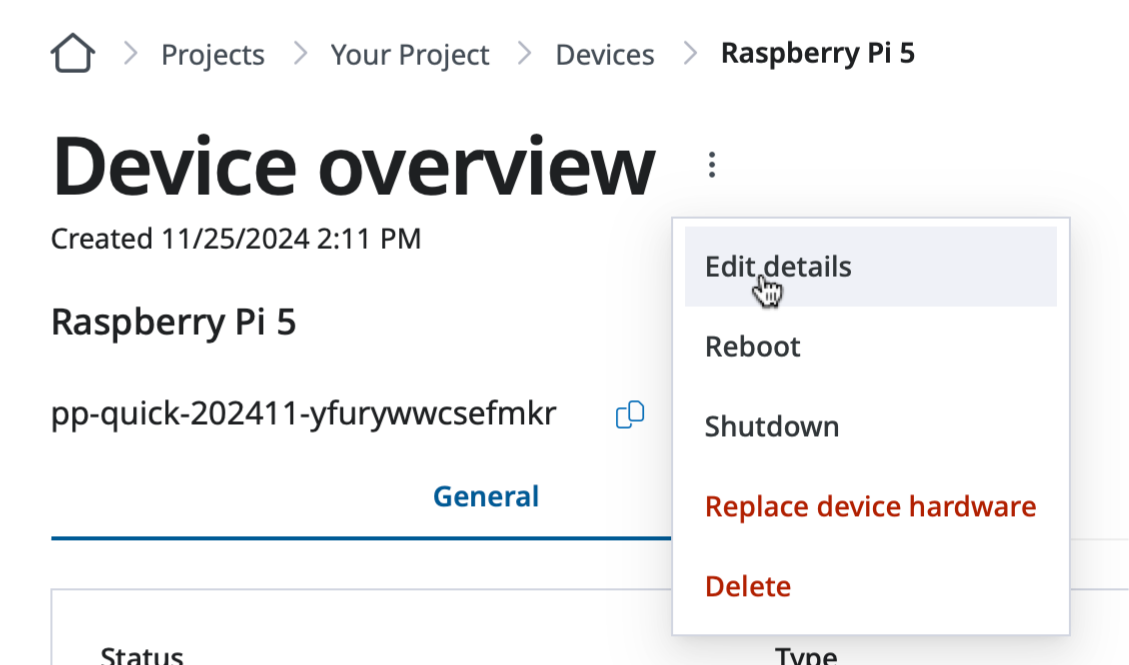
Click the Edit detail option of the device menu option.
Configure the proxy server in the HTTP and/or HTTPS proxy server section of the Update device details page.
You can configure the device to bypass the proxy servers for the particular communication, e.g. the node local communication in the example below.
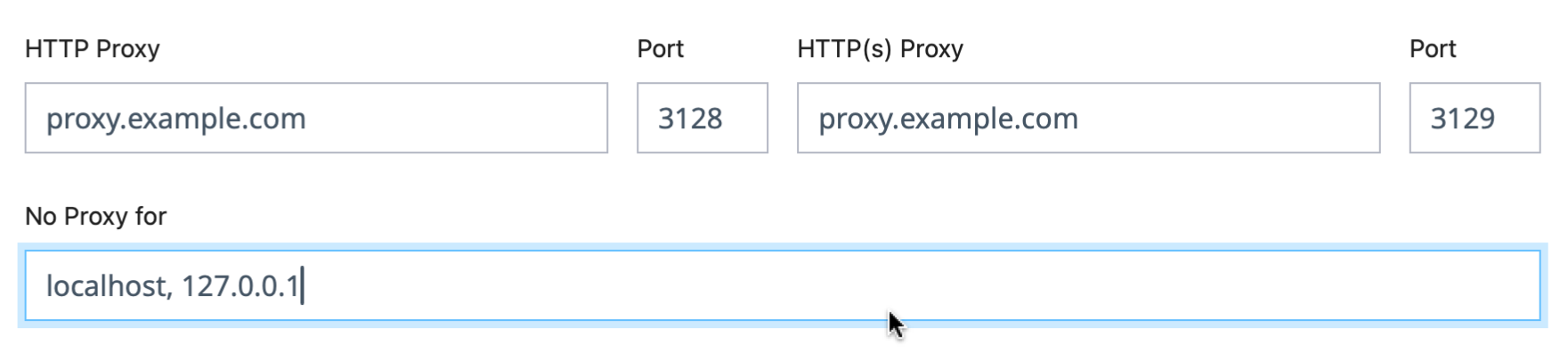
Configure the HTTP and HTTPS proxy servers on the Update device details page.
Most of the container registries require the HTTPS connection to access and retrieve images.
Please consult the IT department on the access policies for the container registries and the internet.
Save the page and you are good to go. The device goes through the proxy server for the HTTP and HTTPS traffic.
What the proxy must allow
The device’s connection to the platform is gRPC over HTTP/2, carried inside a TLS session on port 443. That places two requirements on the proxy.
It must allow CONNECT to port 443. The device does not send ordinary HTTP
requests to the platform; it asks the proxy to open a tunnel and then runs TLS
inside it. A proxy that only forwards HTTP methods, or that restricts CONNECT
to a narrow destination list, blocks the device.
It must not terminate or inspect TLS. A proxy doing TLS inspection substitutes its own certificate for the platform’s. The device validates the platform certificate against its trust store, does not find the inspection certificate there, and the handshake fails.
There is no supported way to install a corporate inspection CA into a device’s trust store. If your network inspects TLS, you must exempt SPEKTRA Edge destinations from inspection — see Connectivity & ports for the names to exempt.
This is worth checking early. TLS inspection is often enabled network-wide and invisible to the person installing the device, and it produces a device that reaches the internet but never comes online.
Fallback behavior
The device determines the best route to the platform and will fall back to a direct connection when the proxy is not usable, so a proxy outage does not necessarily take a device offline. If you require that all traffic traverse the proxy, ensure direct egress is blocked at the network level rather than relying on device configuration.
no_proxy recommendations
Add to no_proxy any destinations that must not go through the proxy, such as:
- on-site services the device talks to directly (local registries, local APIs)
- link-local and private ranges used on the device’s LAN
Related
- Create an install image — setting a proxy before a device first boots.
Next steps
- Review connectivity & ports to confirm what the device must reach through (or around) the proxy.