OS upgrades
You upgrade a device’s operating system by setting the OS version you want; the device downloads the new version, switches to it, and reboots. Because the system image is separate from your configuration and data, your setup is preserved across the change, and you can roll back to a previous version.
Managed OS upgrades are a capability of SPEKTRA Edge OS. On a device
running the droplet agent installed from a .deb package, the platform does
not manage the OS version — patching that host stays with you. See
Install the droplet agent.
How upgrades work
- You set the target OS version for a device (or a group of devices) from the dashboard.
- The device downloads the requested version and prepares it alongside the current one.
- The device switches to the new version and reboots.
- After reboot, the device reports its new version, and your configuration and data are intact.
A device keeps more than one OS version on disk — the one it is running and the one it can fall back to — which is what makes switching versions and rolling back fast and safe.
flowchart TB
    subgraph BEFORE["Before"]
        direction TB
        A1["System image slot A<br/><b>running 2.1.0</b>"]
        B1["System image slot B<br/><i>previous version</i>"]
    end

    subgraph AFTER["After upgrade and reboot"]
        direction TB
        A2["System image slot A<br/><i>kept for rollback</i>"]
        B2["System image slot B<br/><b>running 2.1.2</b>"]
    end

    KEEP["Configuration + data<br/><i>untouched throughout</i>"]

    BEFORE -->|"1. download 2.1.2 into the spare slot<br/>2. switch<br/>3. reboot"| AFTER
    KEEP -.-> BEFORE
    KEEP -.-> AFTER
Rolling back is the same operation in reverse: the previous version is still in the other slot, so the device does not need to download anything.
Release channels and compatibility
- OS versions are published per device type, so a device is only offered versions compatible with its hardware.
- Some upgrades may require a minimum current version before you can move to the target, to ensure a supported upgrade path.
Upgrade a device from the dashboard
To go through this section, you need:
- access to the SPEKTRA Edge dashboard
- an active project
- a device provisioned under the project
Go to the Device overview page of the target device under your project by clicking the name of the device on the Project overview page.
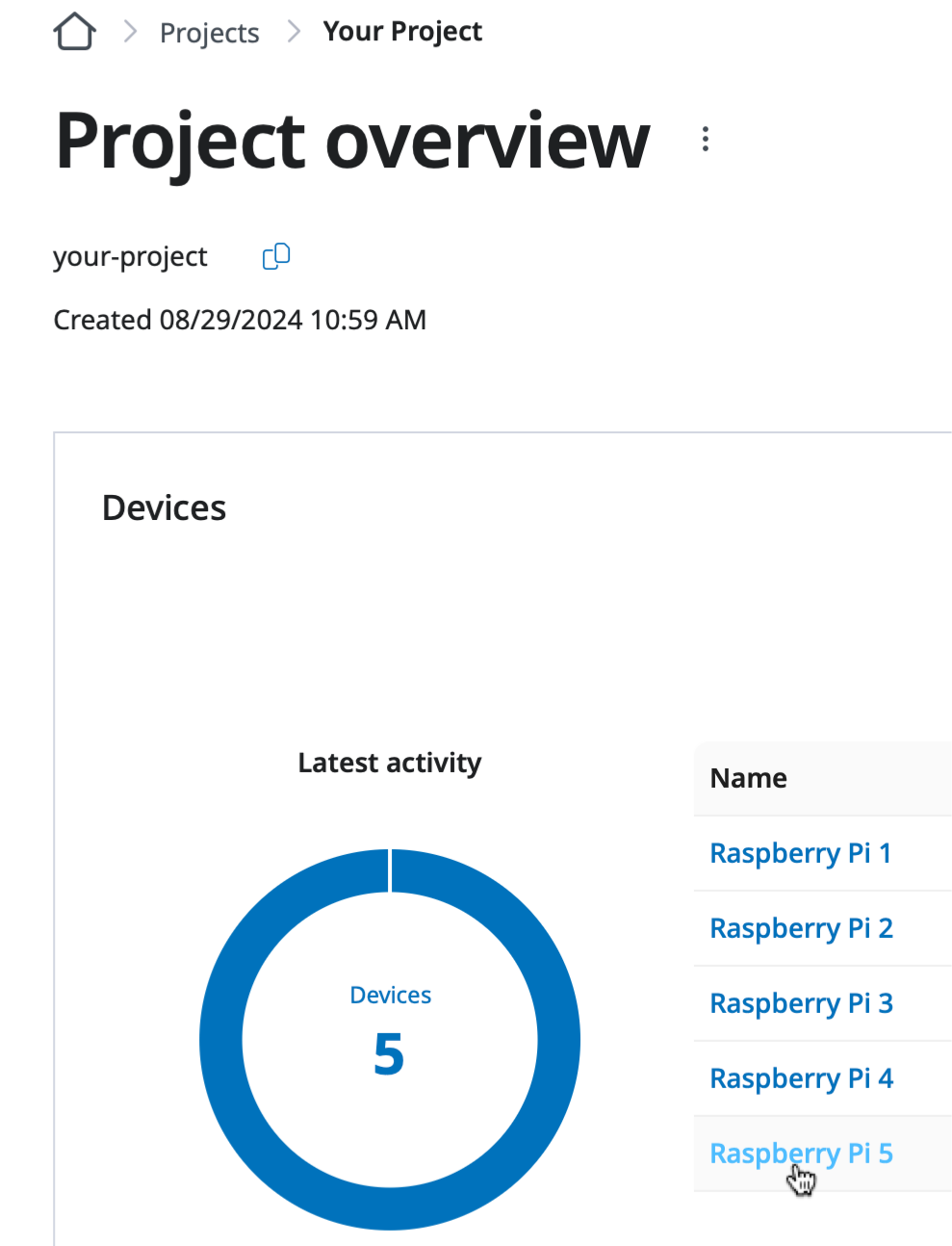
Clicking the device name on the Project overview page.
Open the Update device details page by clicking the Edit detail option of the device menu option.
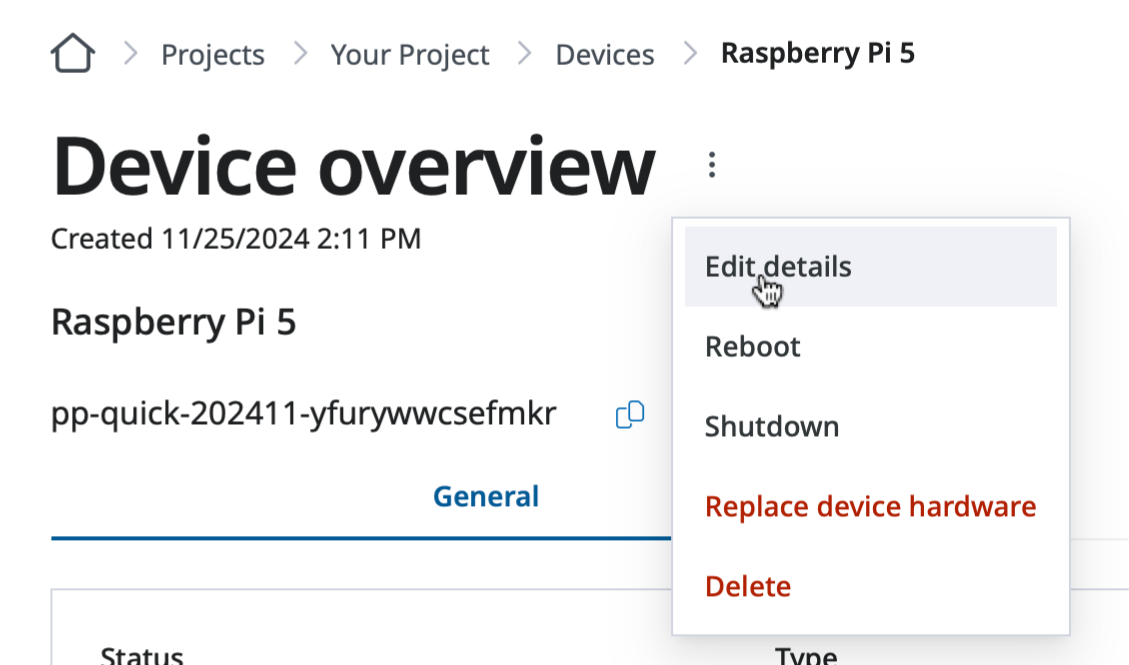
Click the Edit detail option of the device menu option.
Select the OS version, 2.1.2 in this example, and click Save to trigger the OS upgrade process.
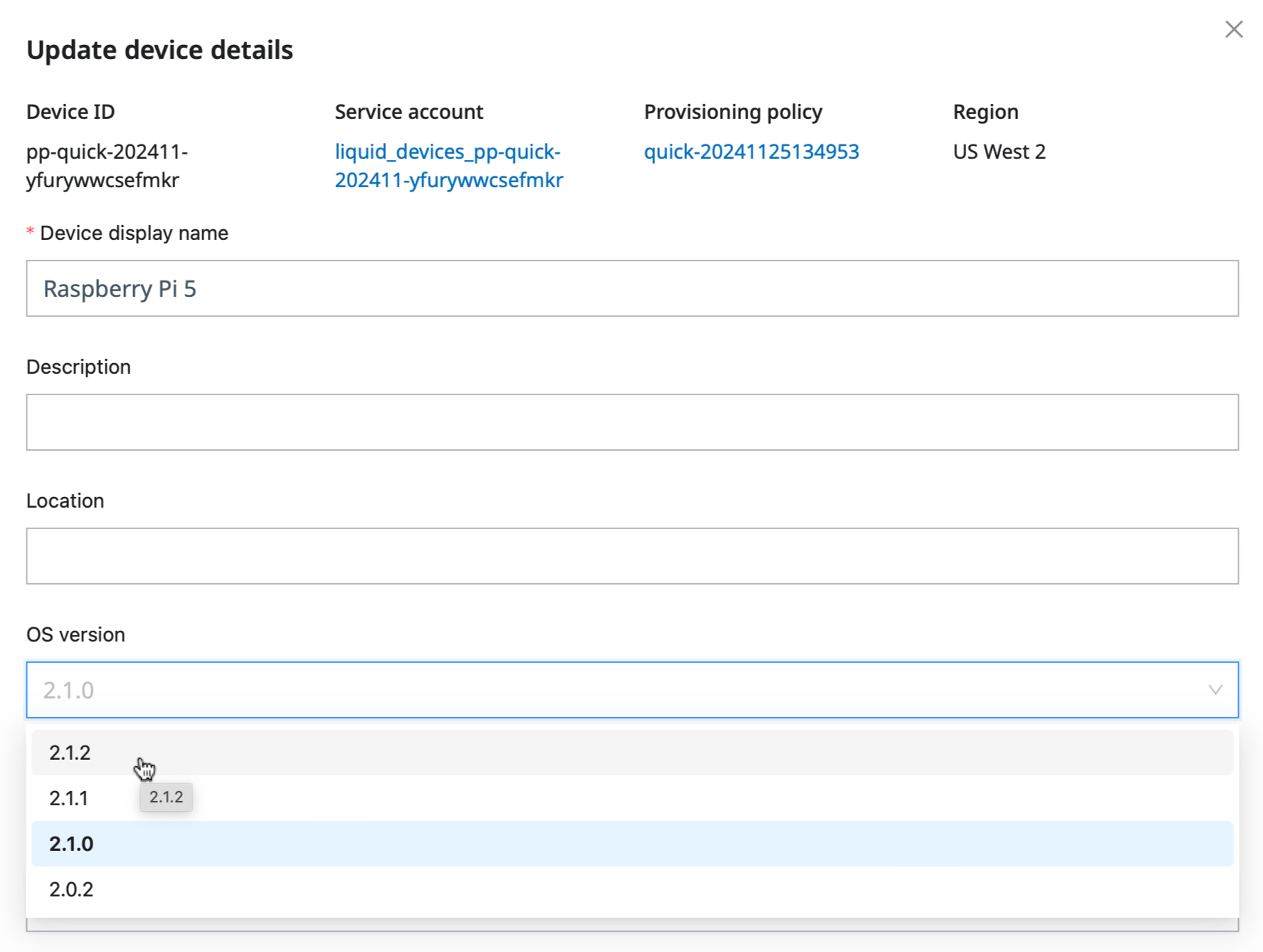
Specify the desired OS version on the Update device detail page and click Save.
The upgrade operation will start automatically and you will see the OS version transition information on the Device overview page.
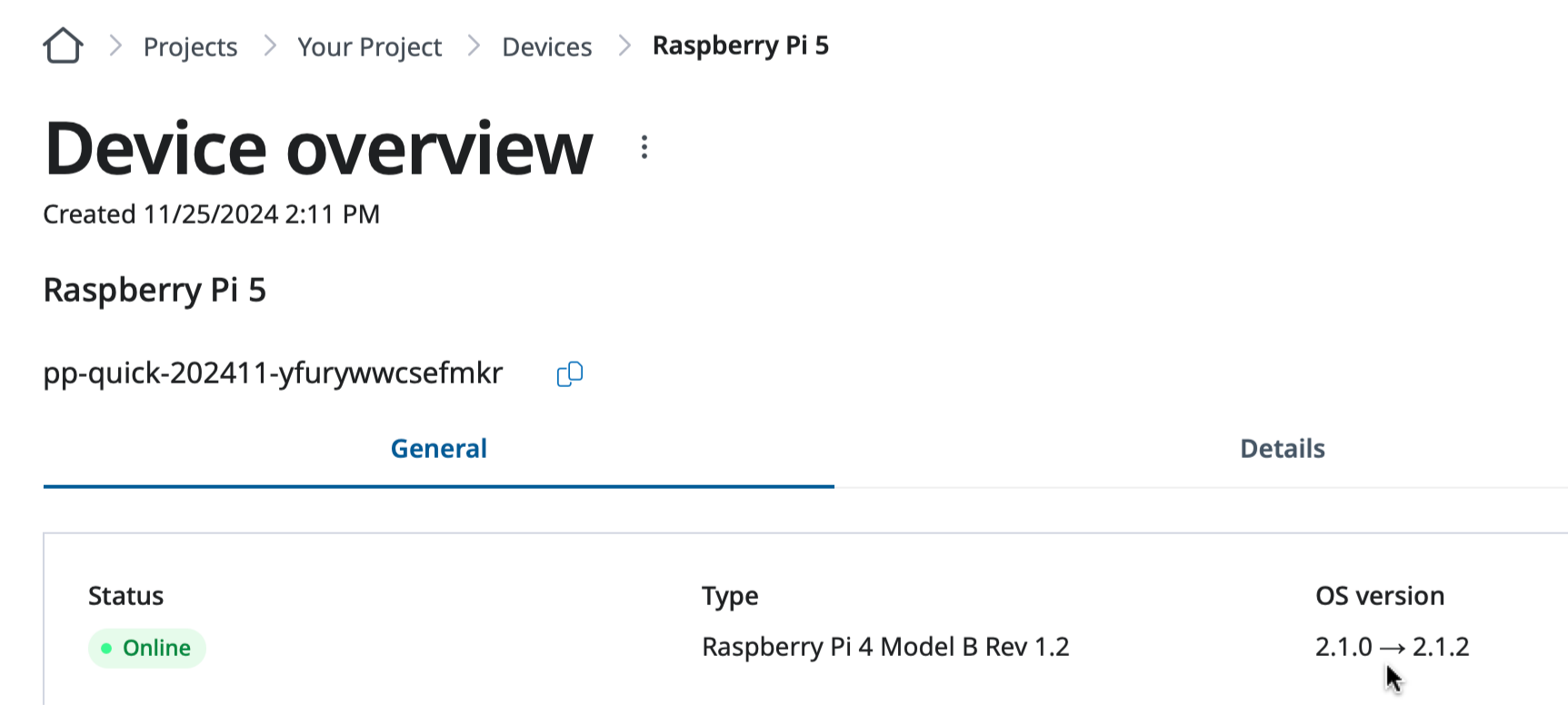
OS version transition information on the Device overview page.
After some time, you will see the device Offline, which indicates the device is restarting with the new OS version.
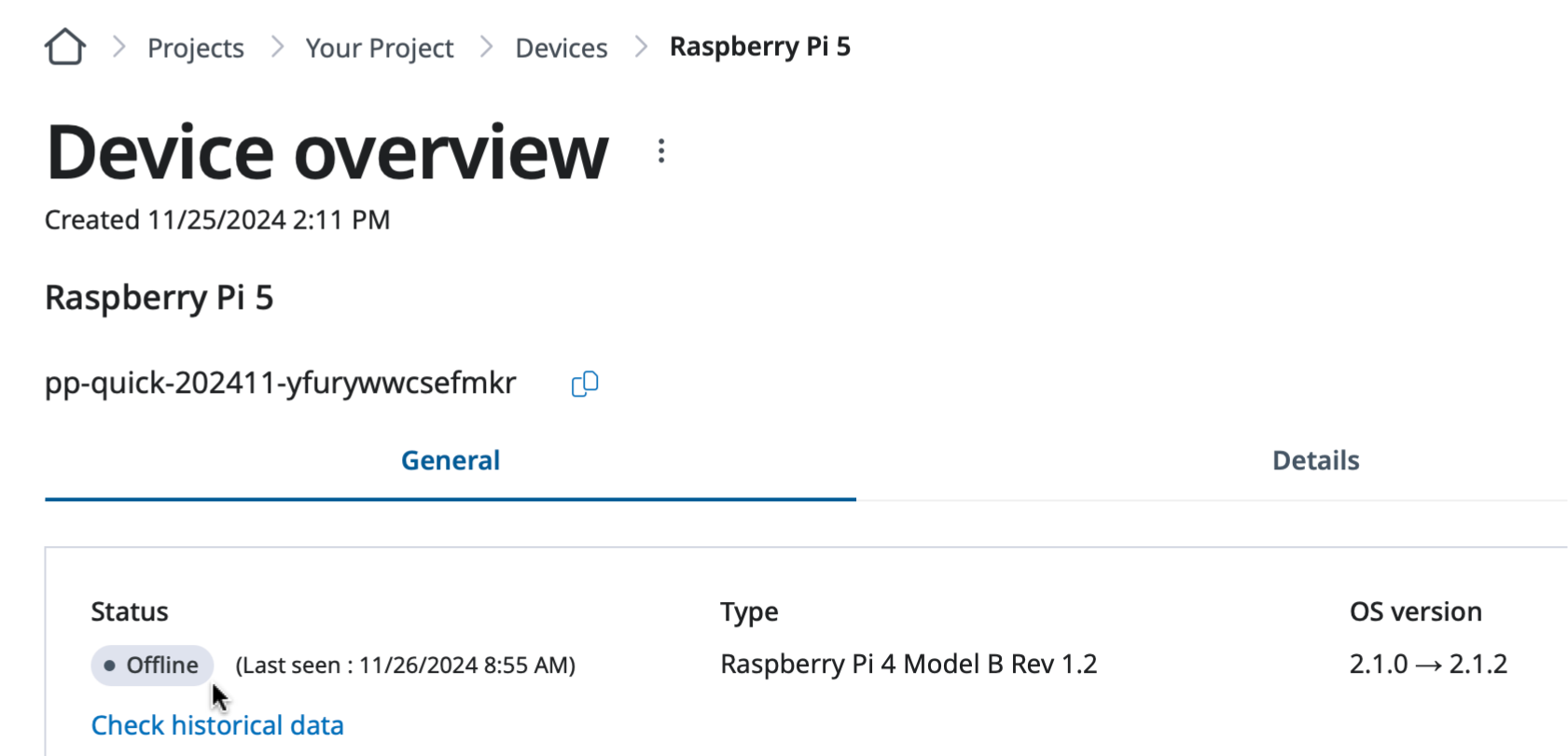
The device is shown as Offline to finalize the upgrade process by restarting the device.
You will see the device up and running with the new OS version on the Device overview page once it boots up.
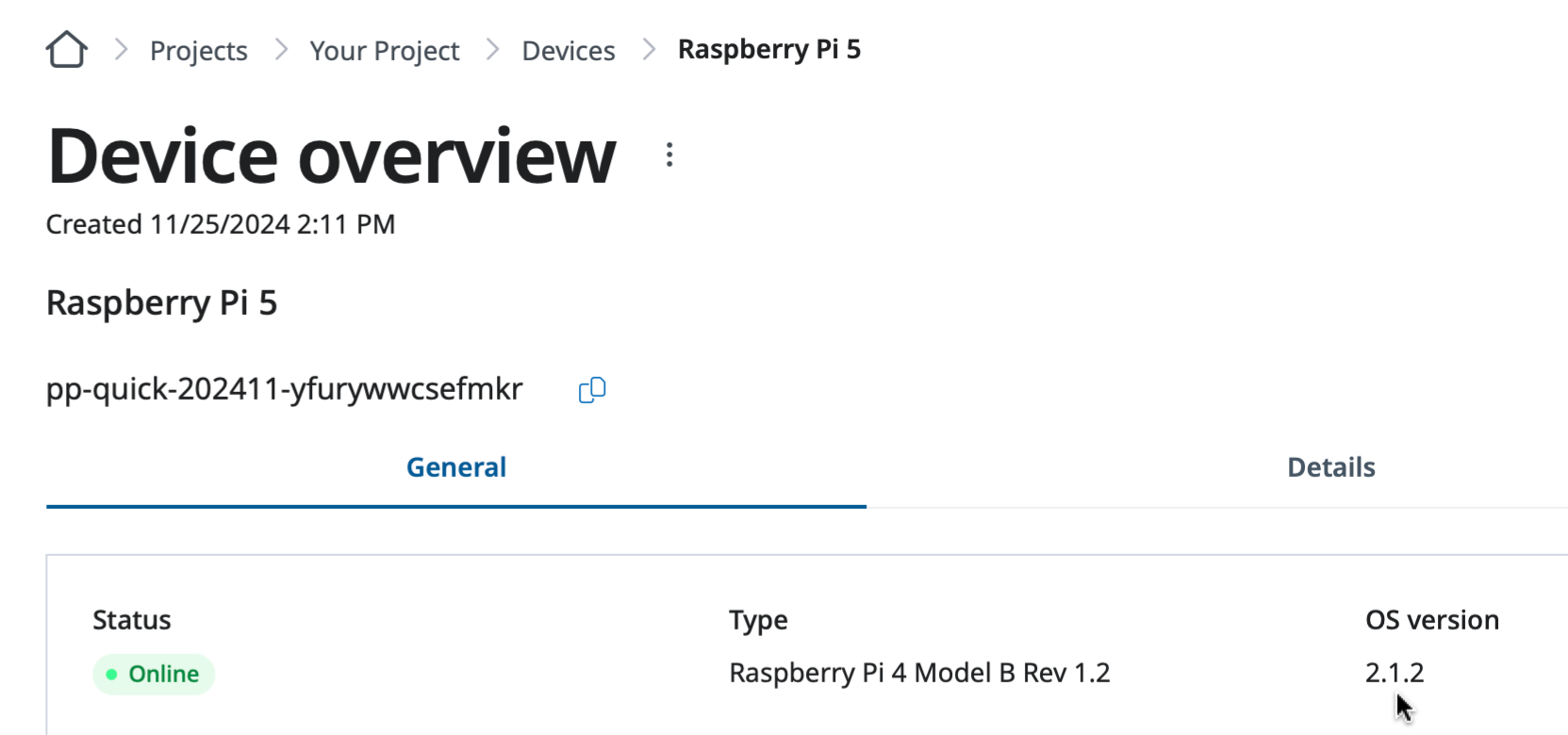
The device is up and running with the new OS version.
Rolling back
If a new version misbehaves, you can roll a device back to the version it was running before, or to its original factory version. Because the previous version is retained on the device, rollback does not require re-downloading it.
Set the desired (earlier) version the same way you set an upgrade; the device switches back and reboots.
Downgrading the OS can cause problems — some features may stop working, and devices can become unreachable. Please consult SPEKTRA Edge customer support before starting a downgrade.
Select the downgrade OS version, 2.1.0 in this example, and click Save to trigger the OS downgrade process.
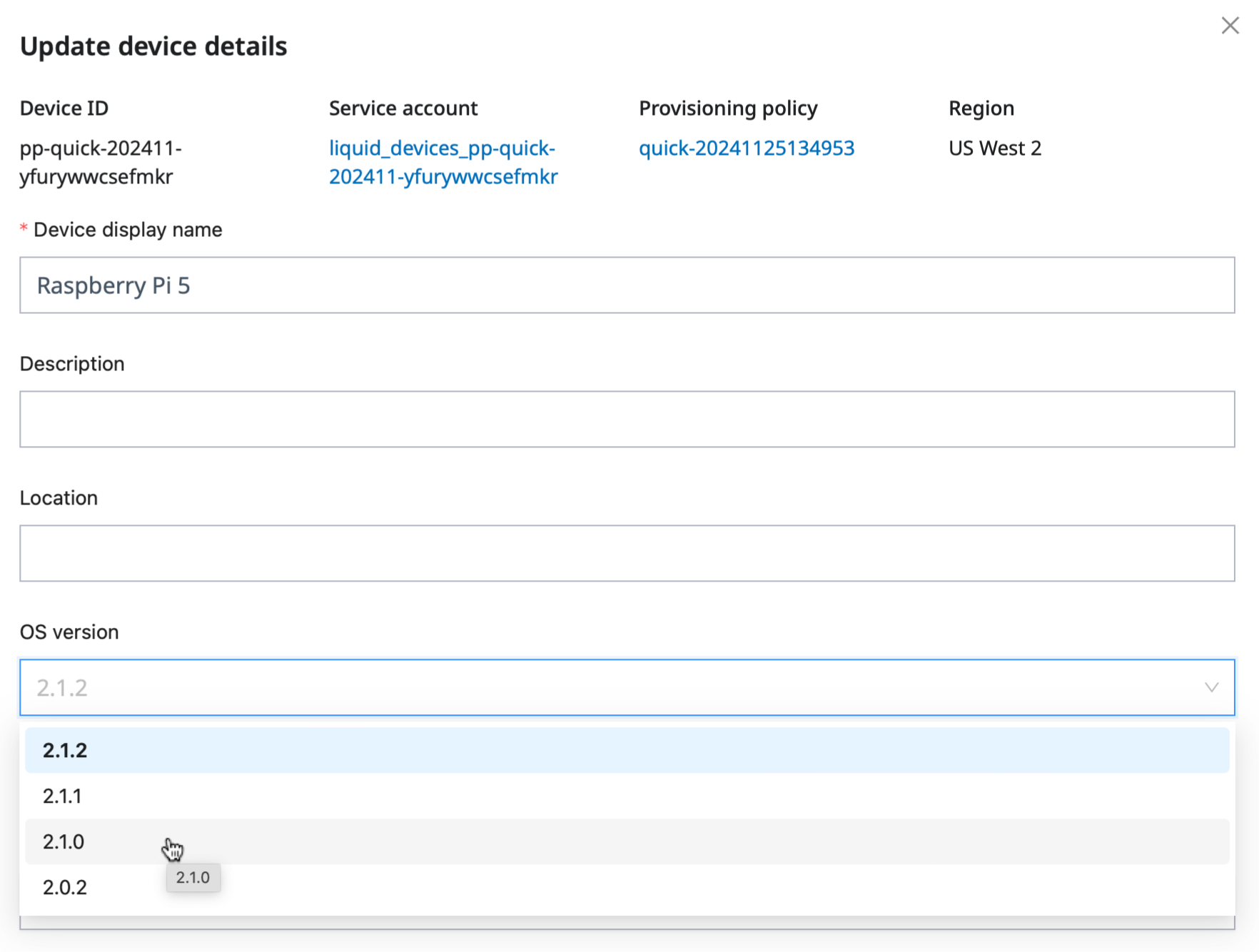
Specify the desired OS version on the Update device detail page and click Save.
The OS downgrade process automatically starts once you click the Save button of the Update device details page.
After a minute or so, you will see the device status Offline with the OS version transition information on the Device overview page.
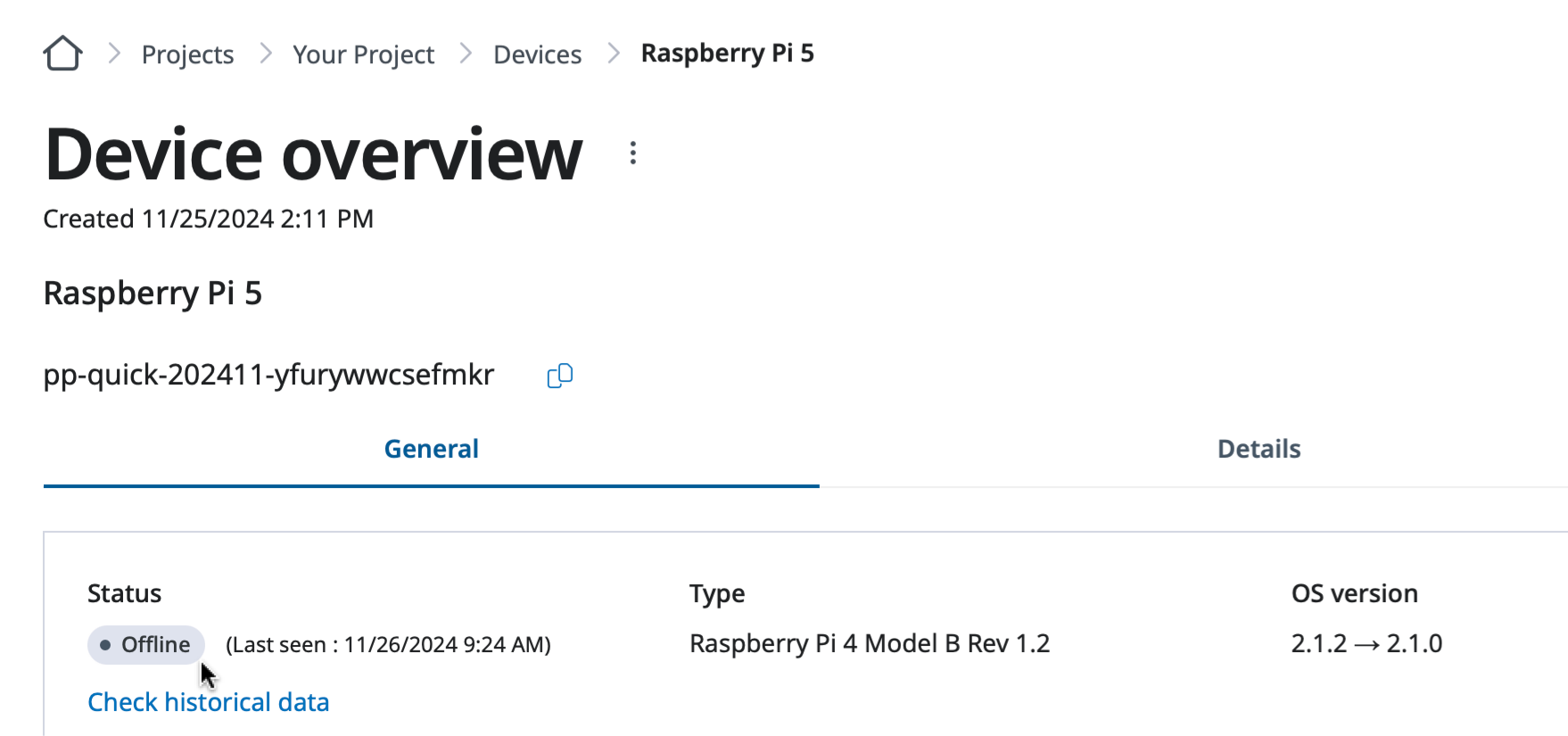
OS version transition information on the Device overview page.
You will see the device up and running with the new OS version once it boots up.
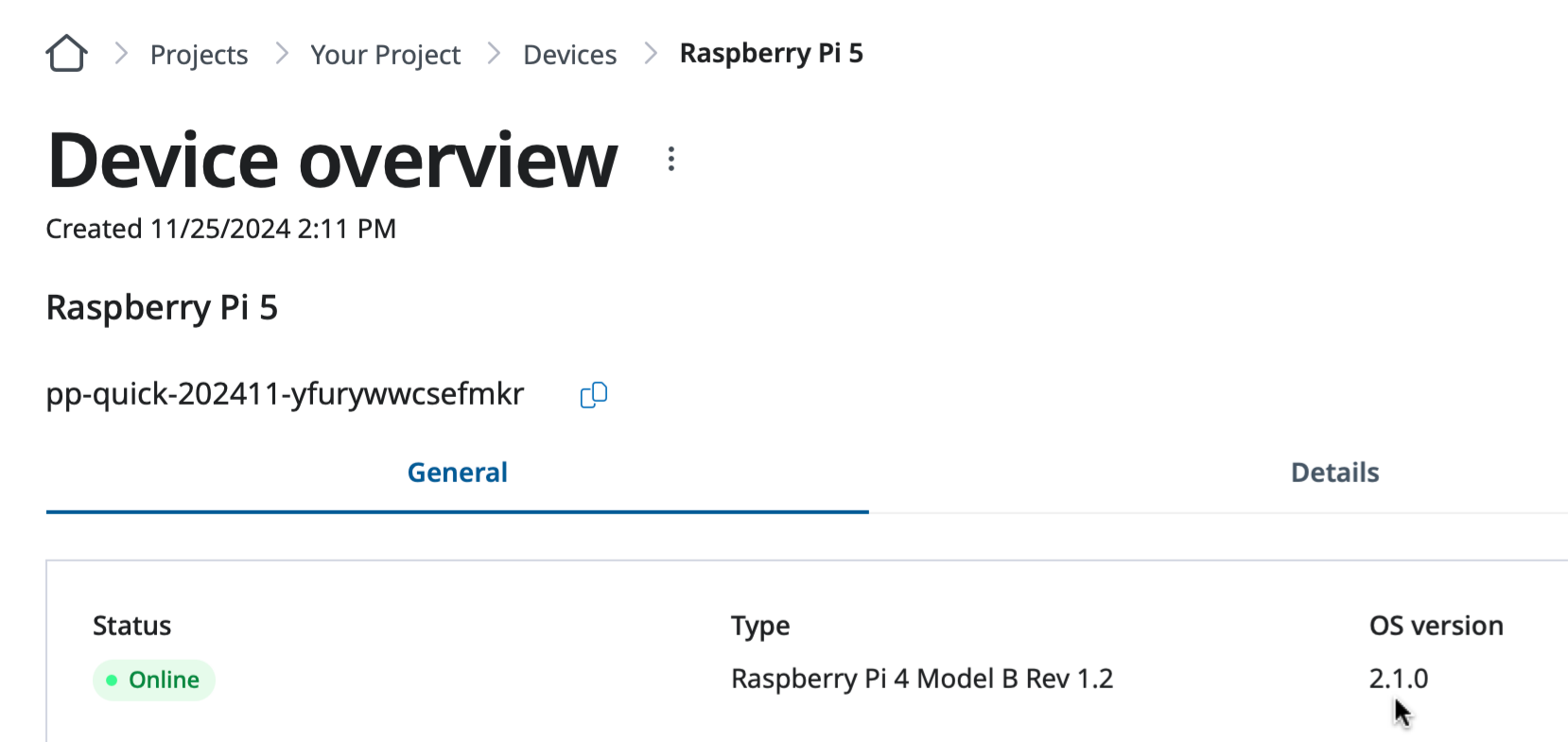
The device is up and running with the new OS version.
Encrypted devices
Managed upgrades preserve automatic unlock on encrypted devices — no manual action is required to keep an encrypted device unlocking across an upgrade.
If an upgrade does not complete
- Confirm the device has connectivity to download the new version (including through any proxy).
- A device that fails to start a new version can fall back to the retained previous version.
- See the troubleshooting playbooks for upgrade issues.
Related
- SPEKTRA Edge OS release notes — what changed in each OS version, so you can decide which version to move a device to.