Accounts & access
Let’s learn how to manage users on SPEKTRA Edge.
SPEKTRA Edge offers the Identity and Access Management (IAM) framework for the user management, which is based on the Role-Based Access Control (RBAC) mechanism. In other words, you apply the certain role or roles to the users or groups, which is called the role binding, to give the certain permissions to the particular individual or group of individuals.
It also has a concept of scope of role binding, which is that the permissions for the particular role only applicable in the certain scope. This means that the role binding happened at the project is only effective under that project, or sub-projects if those available, but not others, like parent projects.
This means that you can create a really powerful and effective user management mechanism with the well-organized projects or organization structure.
Put together, every grant of access on SPEKTRA Edge answers three questions: who, what, and where.
flowchart LR
    WHO["<b>Who</b><br/>a user, a group,<br/>or a service account"] --> RB
    WHAT["<b>What</b><br/>a role, such as<br/>Owner or Viewer"] --> RB
    WHERE["<b>Where</b><br/>a scope: an organization,<br/>a project, or a service"] --> RB
    RB["<b>Role binding</b>"] --> OUT(["This principal has this role's<br/>permissions — but only<br/>inside this scope"])
Scopes inherit downwards only. A role granted on an organization applies to the projects beneath it; a role granted on a project does not grant anything on its parent or on a sibling project.
flowchart TD
    ORG["Organization"] --> P1["Project A"]
    ORG --> P2["Project B"]
    P1 --> SP["Sub-project A1"]

    GRANT(["Grant Viewer<br/>on Project A"]) -.->|"applies"| P1
    GRANT -.->|"applies"| SP
    GRANT -.->|"does <b>not</b> apply"| ORG
GRANT -.->|"does <b>not</b> apply"| P2The role-binding process is one side of the whole user management process on SPEKTRA Edge. The other side is the user authentication.
There is no order dependency between the two but it just needs to happen to let users have access to SPEKTRA Edge.
What you need
To grant access to users and groups, you need the following.
- access to the SPEKTRA Edge dashboard
- an active project
Roles
Granting access means choosing a role, so it is worth knowing what the roles mean before you grant anything. These are the pre-existing user roles offered by SPEKTRA Edge.
| Role name | Resource name | Permissions |
|---|---|---|
| Owner | scope-admin | All operations on core and third party services |
| Admin operator | admin-operator | All operations on core services |
| Device operator | devices-operator | All operations on device and applications services |
| Application operator | apps-operator | All operations on applications services |
| Viewer | viewer | Read-only operations on core services |
The owner role has full access to the services offered by SPEKTRA Edge under particular scope.
The admin operator role is similar to the owner role but does not have access to the third-party services, for example the watchdog service offered by Service Experience Insight. This is a good role for someone who manages the entire service, e.g., user management.
The devices and application operator roles are both for the application management. The devices operator role is good for someone who manages both devices and applications but the application operator is for the application management only.
The viewer role has read access to core services but no write access. This is a good role for someone who only monitors or observes core services.
Grant access to users
With a role in mind, you can grant someone access.
Click the Grant access button in the Manage resources and access of this project blue bar on the Project overview page, which will ask you for:
- the E-mail address of the person you want to give access to the project
- the role to be assigned to the person.
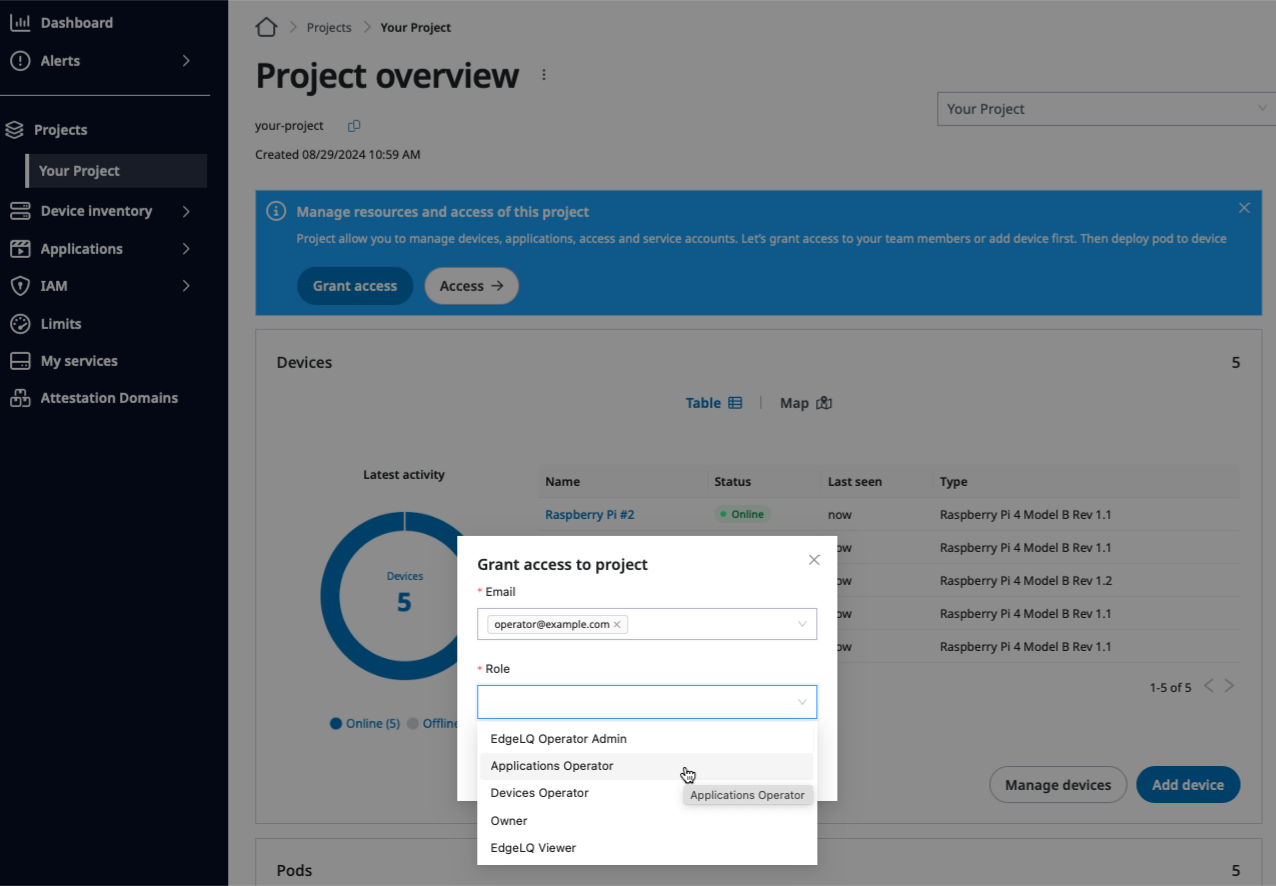
Selecting the role for the user in the Grant access to project dialog on the Project overview page.
Organize users by groups
You can create a group to manage multiple users in one-shot.
One good example of the group usage is to grant access to multiple users in a single operation, as explained in the following section.
To create a group, click the Create group button on the Project overview page and fill in the required information, such as the name and the region, as well as the E-mail addresses of the members managed in the group.
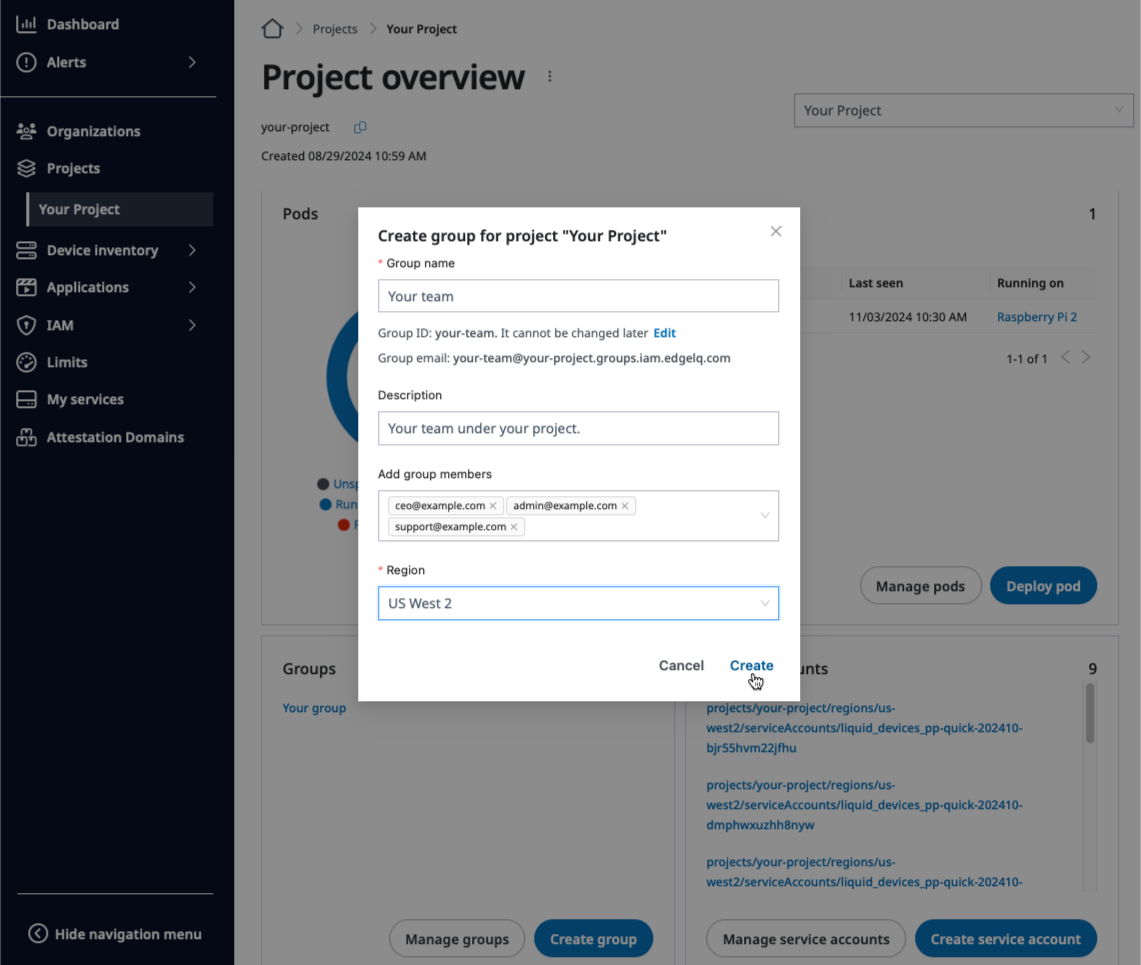
Creating Your team group under Your project.
Grant access to groups
You can grant access to the group, which is a great way to grant access to multiple users in the efficient fashion.
To do that, use the group E-mail address to grant access instead of the individual person’s E-mail. The group E-mail address is constructed by SPEKTRA Edge with the following convention.
[Group name] @ [Project name] .groups.iam.edgelq.com
You can also get the group E-mail address on the groups overview page under your project.
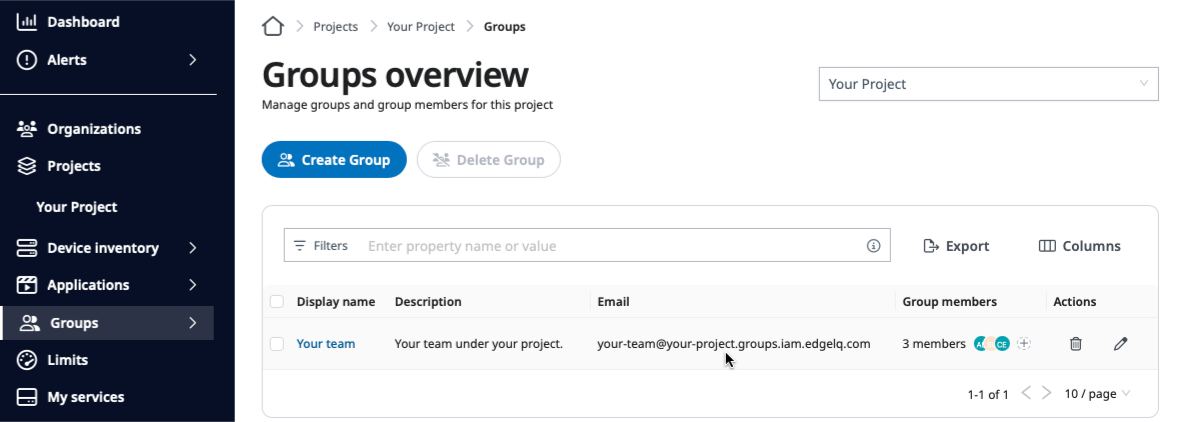
The group E-mail address on the groups overview page.
Grant access by clicking the Grant access button on the Project overview page. Give the group E-mail address, your-team@your-project.groups.iam.edgelq.com for this example, and the role you want to grant access to the group.
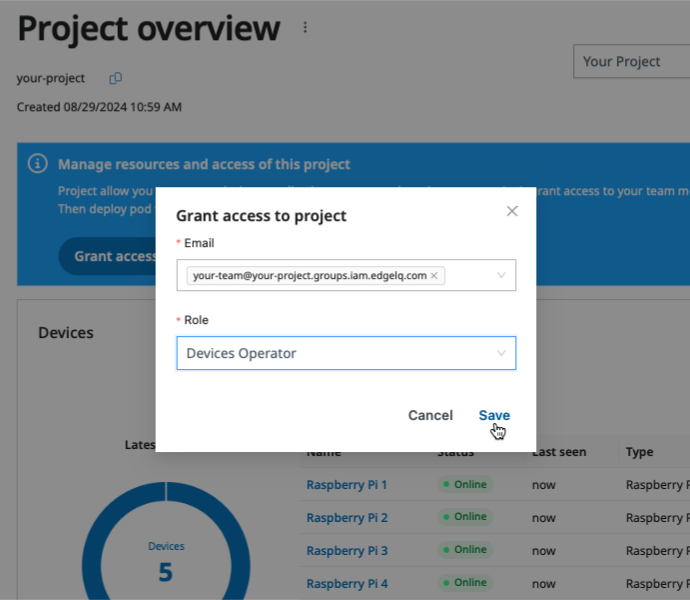
Granting access to the group with the group’s E-mail address.
You can check the roles for the group members by going to the Access page under the IAM section. You can see all the group members have the same role of the group’s role.
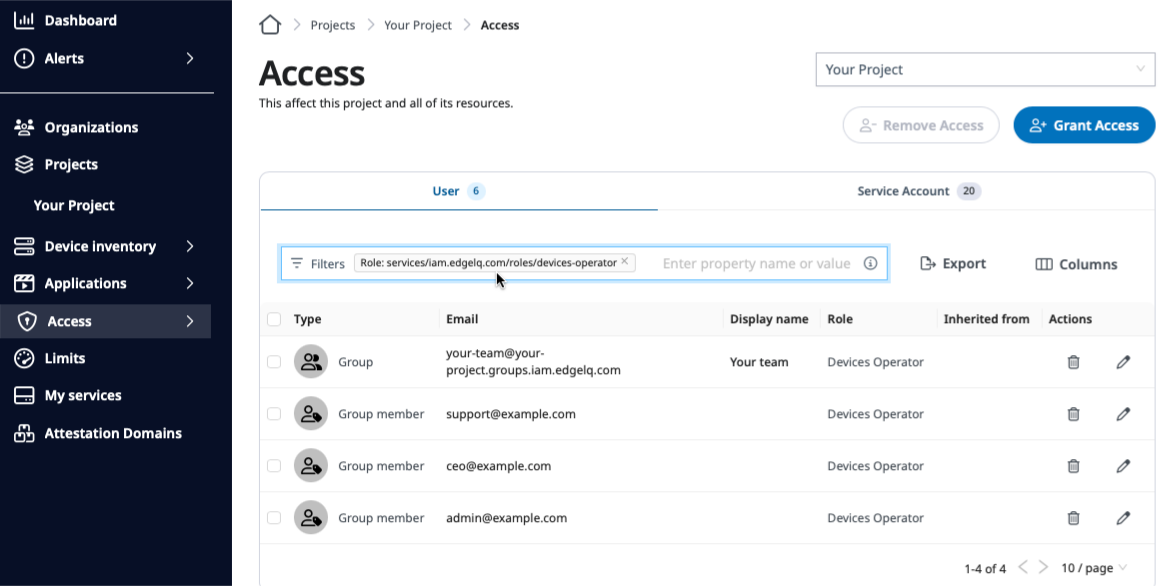
All the group members have the same role of the group’s one.
It takes a while, a minute or two, before the role binding completes on the group members because it is done by the SPEKTRA Edge controllers behind the scenes in the eventual consistency fashion.
In this section
- Organizations and projects — how projects and organizations are structured, what descendants inherit, and the choices that are hard to undo.
- User authentication — sign up, sign in, and set up multi-factor authentication.
- Service accounts — identities for automation and devices, and the keys they authenticate with.
- Manage resource limits — the resource quotas that apply to a project, and how to request and approve changes to them.
Next steps
Congratulations on understanding how to manage users on SPEKTRA Edge.
With the power of the scope based role binding, you can conduct the user management with achieving the high security standard.
The role binding is one side of the user management coin. The other side of the user management is the user sign-up and sign-in.
Let’s dive into user authentication to understand the full picture of the user management on SPEKTRA Edge.